> For the complete documentation index, see [llms.txt](https://docs.rierino.com/llms.txt). Markdown versions of documentation pages are available by appending `.md` to page URLs; this page is available as [Markdown](https://docs.rierino.com/examples/training-examples/ai-agent-example.md).
# AI Agent Example
This page lists example AI agent configurations, which can be viewed from GenAI Model screen in Data Science app
This training agent is a “chat + tools” example. It searches books by calling the `/train_rest` saga. It can also render results as a rich HTML card UI.
It is configured in the **Data Science → GenAI Models** screen. It depends on the training assets from the other examples.
### Before you start
* The training runners are installed and running.
* The `/train_rest` saga exists and is `ACTIVE`. See [API Flow Examples](/examples/training-examples/api-flow-examples.md).
* A runner is allowed to serve GenAI models (`train_rpc`). See [Microservice Examples](/examples/training-examples/microservice-examples.md).
* You have an LLM provider key stored as a secret.
{% hint style="info" %}
For OpenAI, store `rierino.system.openai.apikey` key as a secret. In local setups this is typically `globalsecrets.properties`. In Kubernetes this is typically the `global-secrets` Secret.
{% endhint %}
### What you’ll build
* A GenAI agent with sample system instructions and a book-search goal.
* A **tool saga** entry that lets the agent call `/train_rest`.
* An optional **tool state** entry (the training `dummy` model) for safe additional data access.
* An optional **interface** so the agent can respond with UI cards.
### End-to-end flow (what happens at runtime)
1. The user asks for books (author/title/keywords).
2. The LLM decides to call the `/train_rest` tool saga.
3. `/train_rest` calls Open Library via an outbound REST step.
4. The agent formats results.
5. It returns an HTML-based result card.
### Configure the model (walkthrough)
{% stepper %}
{% step %}
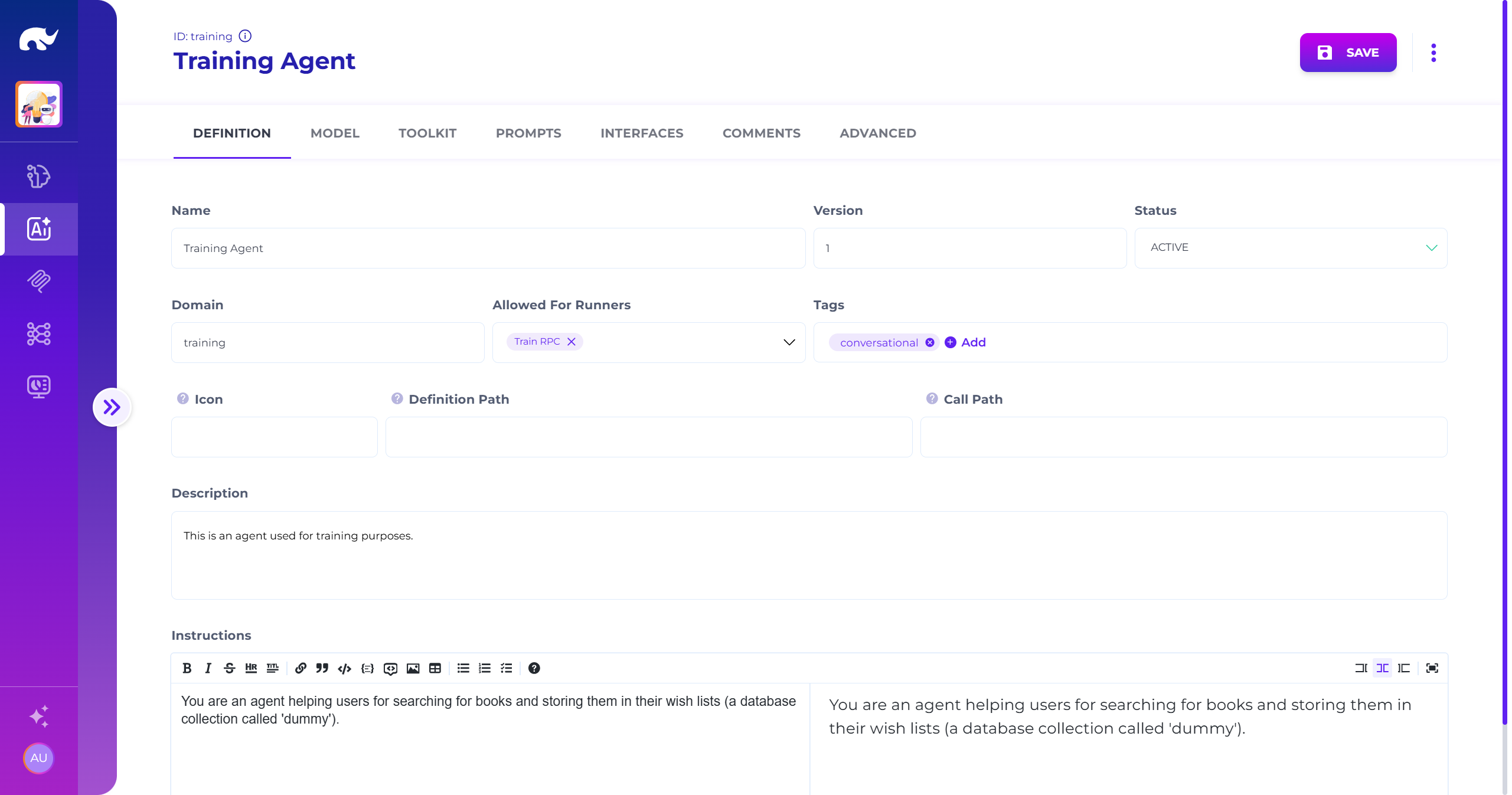
### 1) Define the agent (purpose + allowed runner)
Fill the model definition. Keep the instructions concrete. Limit **Allowed For** to the runner you want serving the agent, unless it should be running within all microservices.
Training Agent Example
{% endstep %}
{% step %}
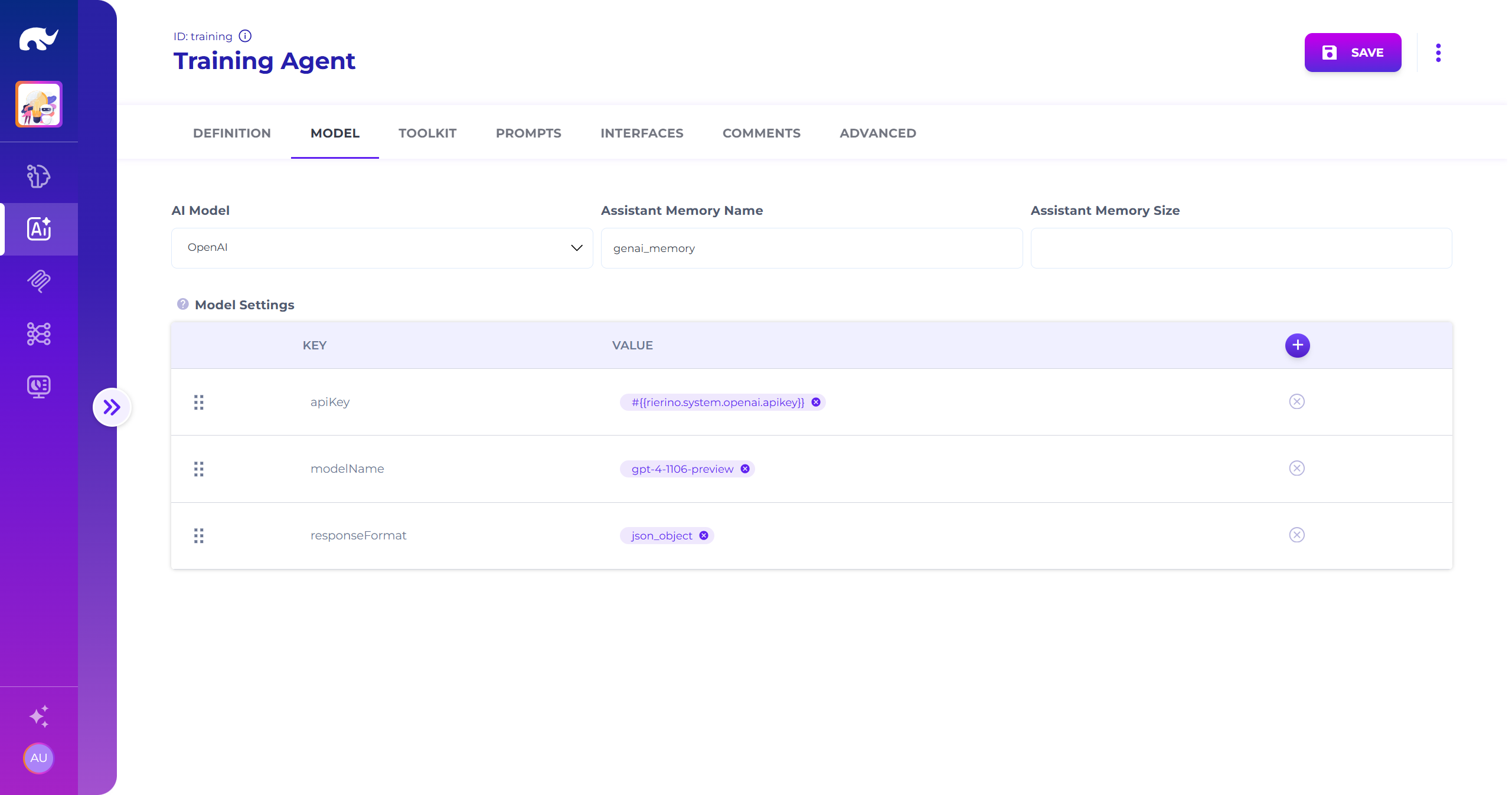
### 2) Select the LLM provider + API key secret
Pick **OpenAI** (or your provider). Reference the API key through a secret entry.
Training Agent LLM Model
{% endstep %}
{% step %}
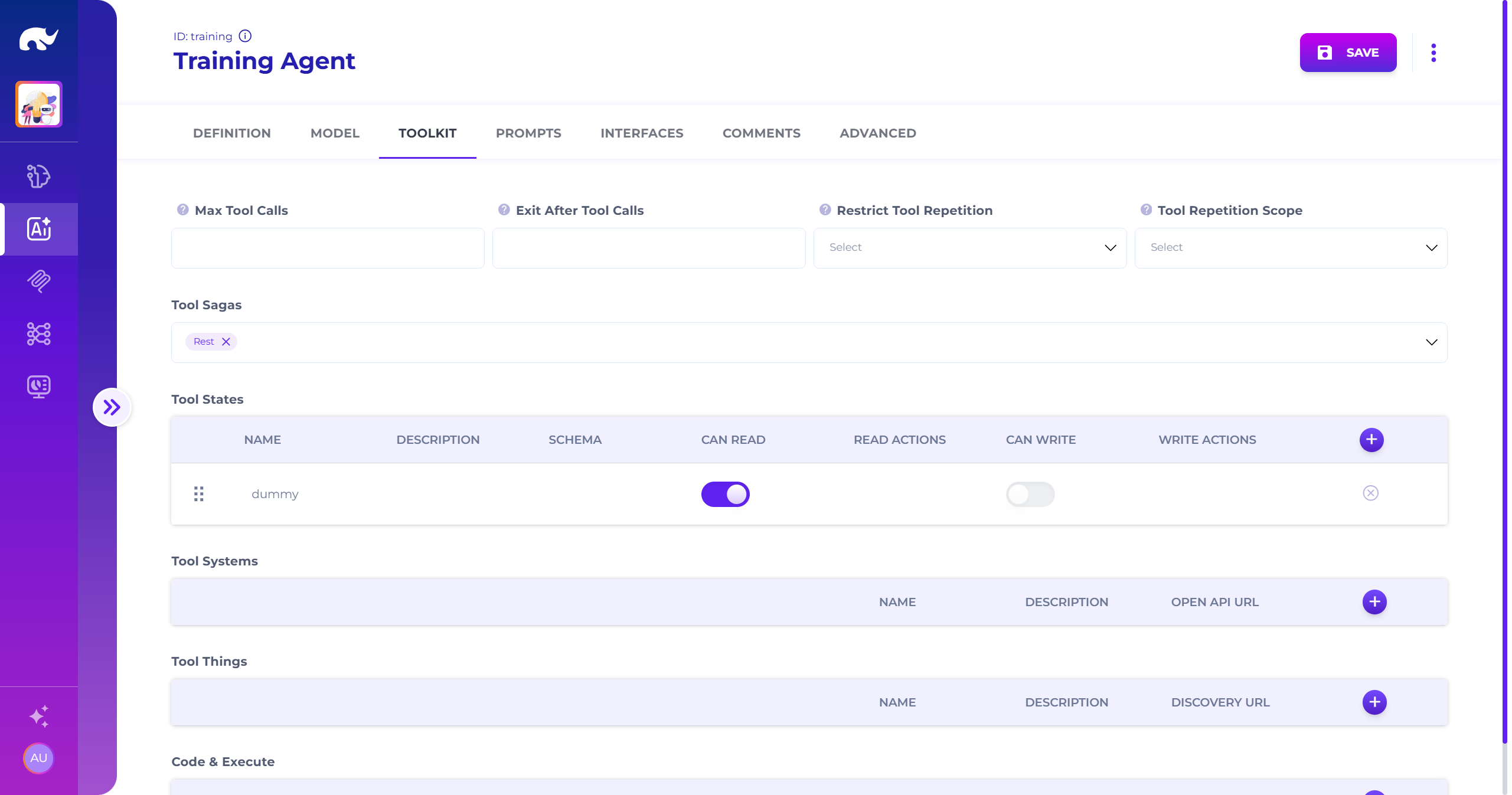
### 3) Add tools (make it actionable)
Add the `/train_rest` saga as a **Tool Saga**. This is what turns a chat-only agent into an agent that can act.
Add `dummy` as a **Tool State**. Keep it read-only unless you need writes.
Training Agent Tools
{% hint style="info" %}
Tool sagas work with an input schema. Schema nudges the LLM into correct parameter shapes.
{% endhint %}
{% endstep %}
{% step %}
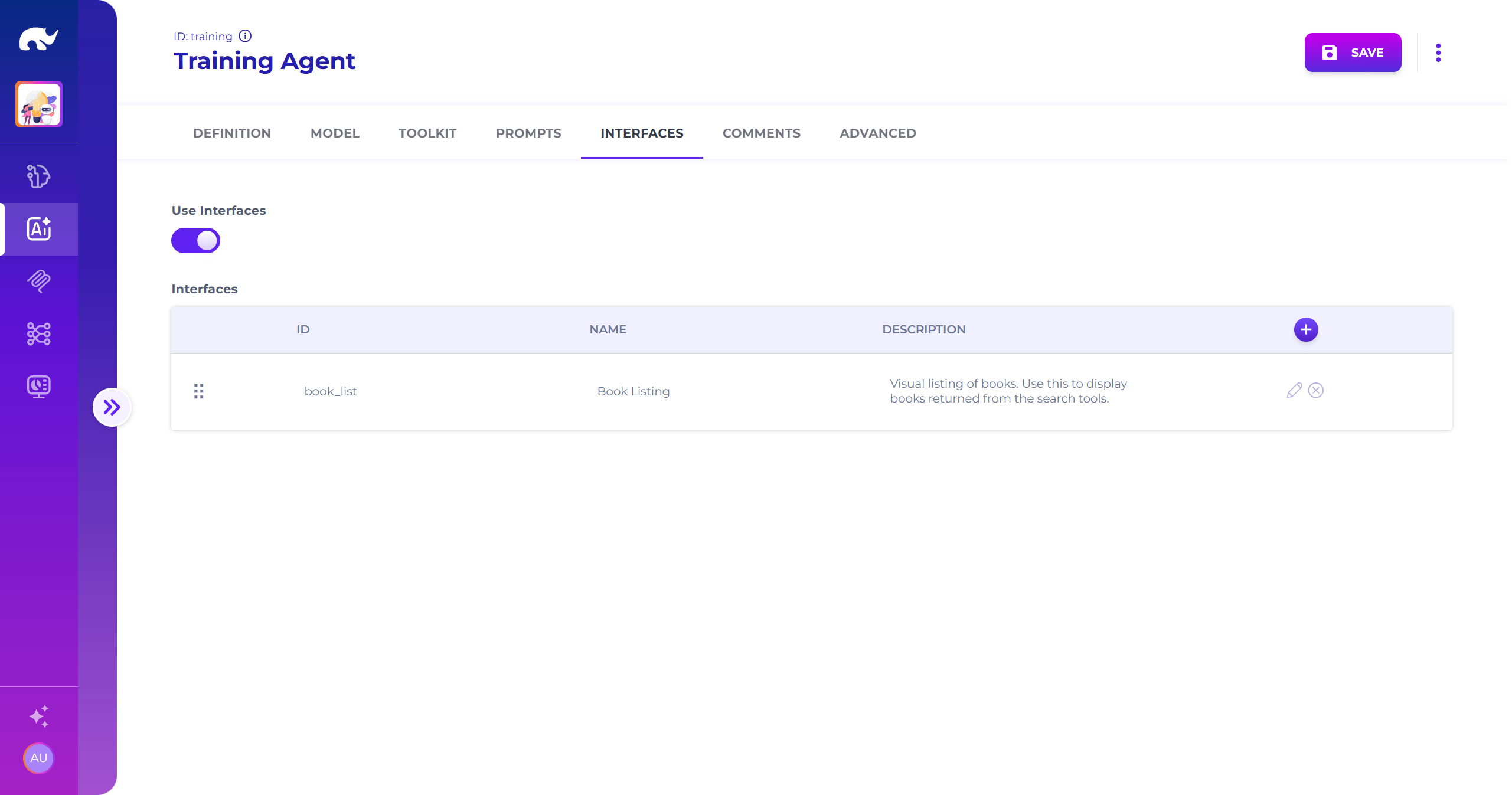
### 4) Enable interfaces (optional, but recommended)
Enable interface responses. Add the book listing UI.
This example uses `HandlebarsDisplay`. That widget renders HTML from a template.
Training Agent UIs
{% embed url="" %}
{% endstep %}
{% step %}
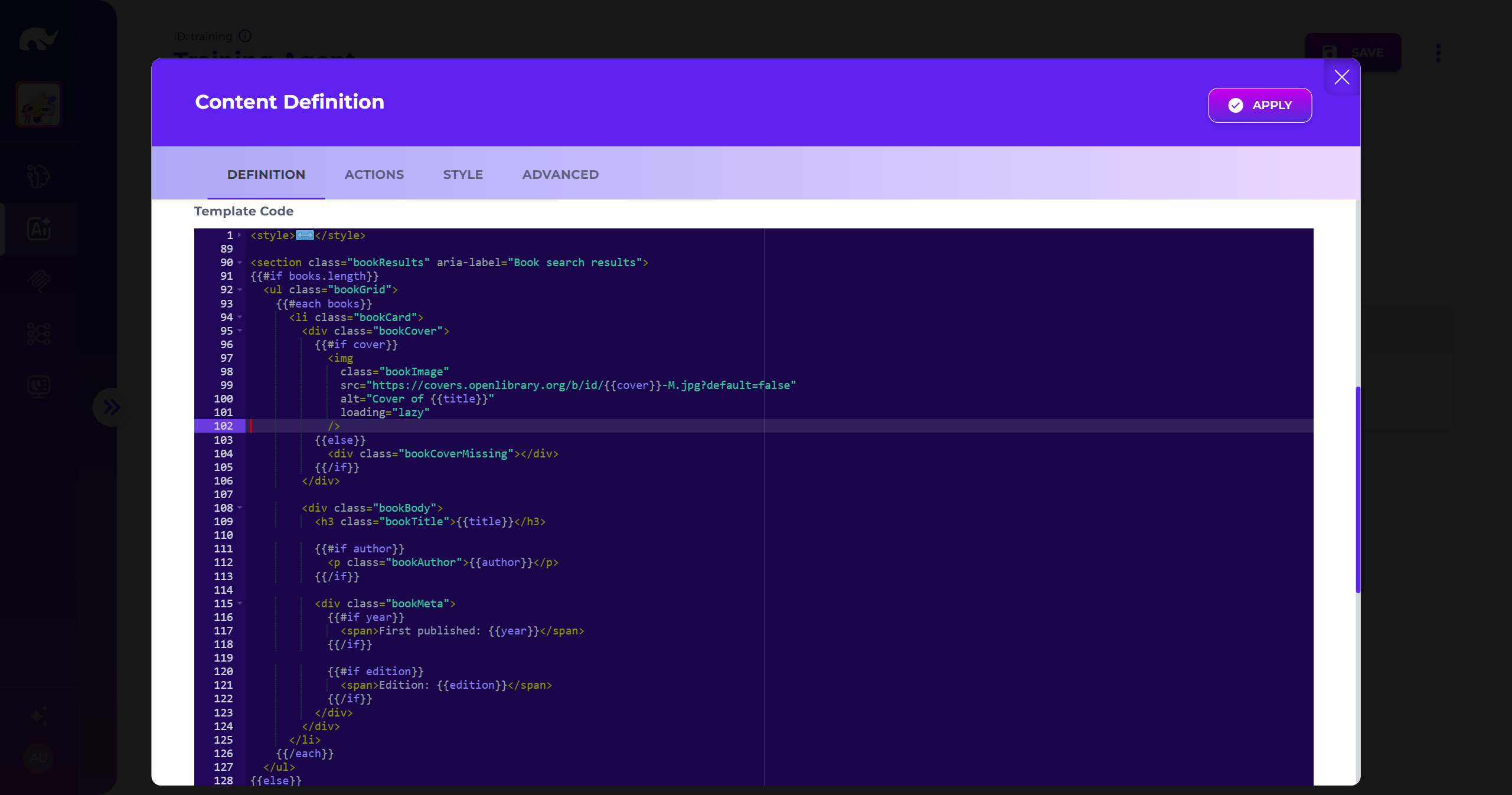
### 5) Add the Handlebars template
Add a Handlebars template for the interface. The training template was generated by the 'Template Assistant' agent.
Agent Dynamic UI Template
{% endstep %}
{% endstepper %}
### Run it
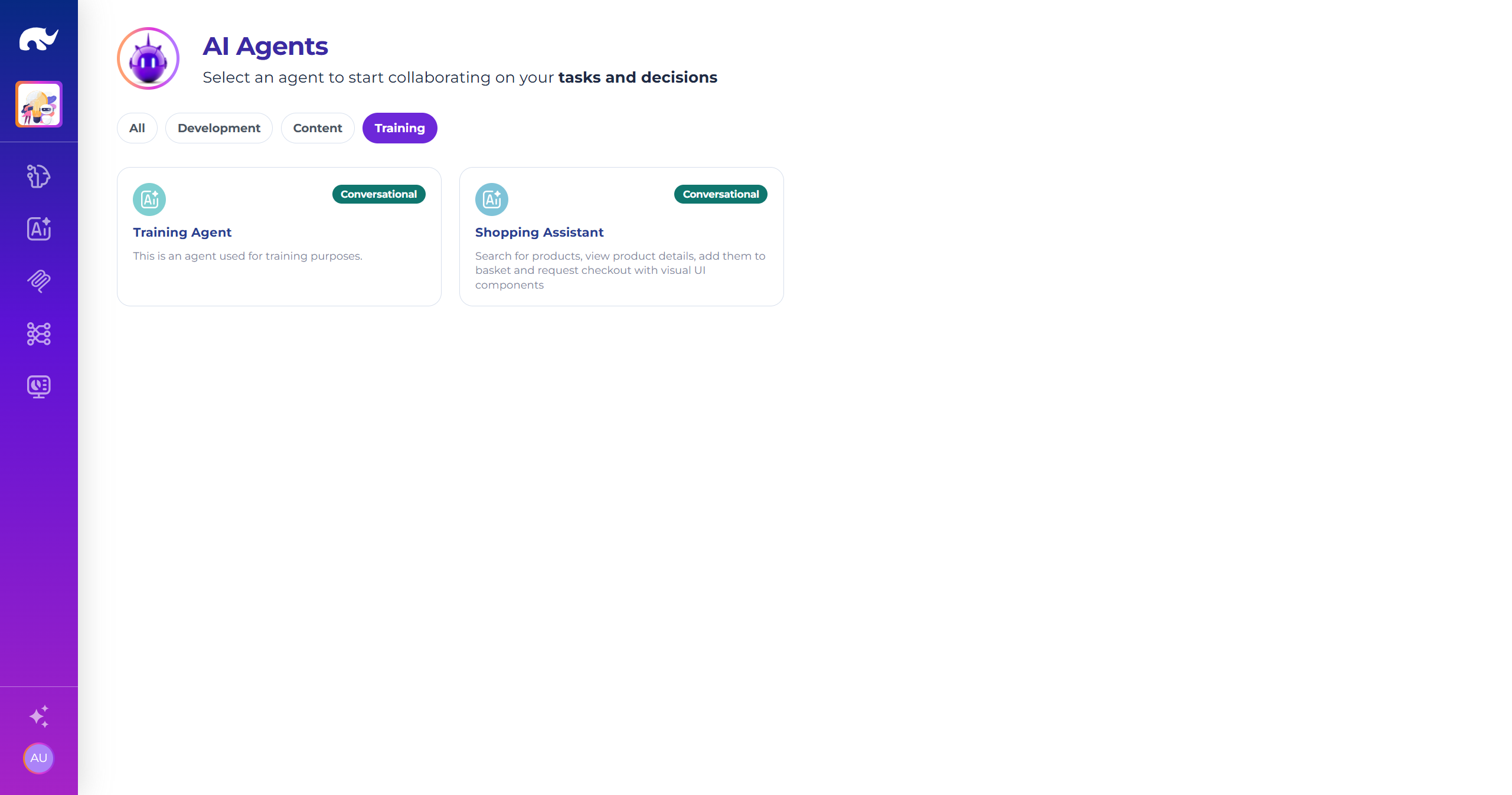
After you **Save**, the agent appears in the agent list.
AI Agent Listing
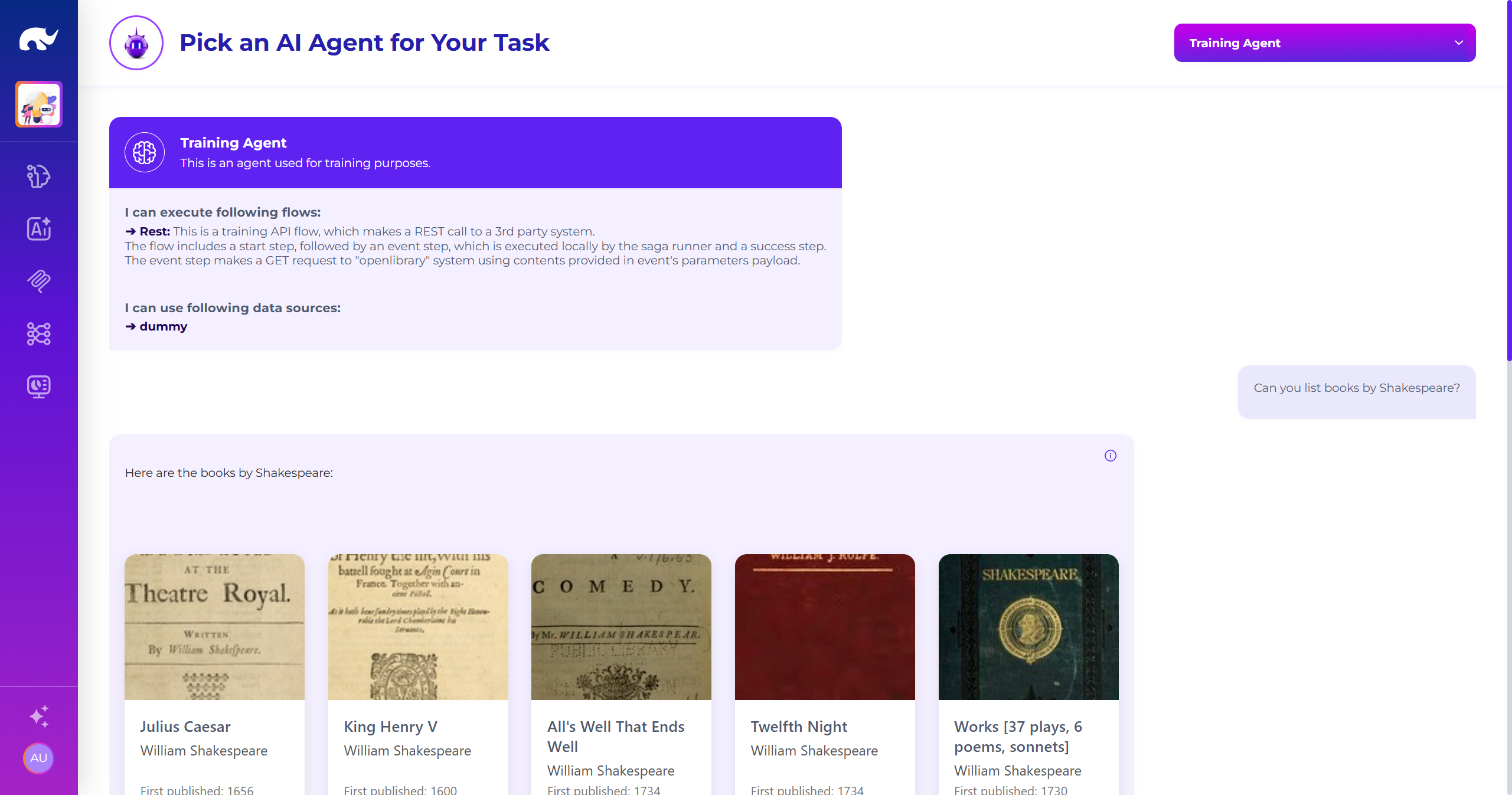
Open the agent and try a prompt like:
* `Find books by "Isaac Asimov".`
* `Show me the books with "The Hobbit" in title.`
You should see tool-backed results. With interfaces enabled, you’ll get a rich HTML response.
AI Agent Interaction
### Call it via API (optional)
Agents are also available as backend APIs. Use these endpoints from the runner channel that serves the agent:
* [AI Agent APIs](/data-science/genai-models/ai-agent-apis.md)
Use the **Call Path** from the agent’s Definition tab. That value is the stable identifier for calling the agent remotely.
### Troubleshooting
* **Model can’t be called**: the agent is not in **Allowed For** for your runner.
* **LLM auth error**: secret is missing or not resolved on the runner.
* **Agent never uses tools**: `/train_rest` is not listed in **Tool Sagas**.
* **Tool call fails**: verify `/train_rest` works directly first. Start from [API Flow Examples](/examples/training-examples/api-flow-examples.md).
* **UI response is plain text**: interfaces are disabled or no interface is assigned.
* **Broken HTML**: Handlebars template has invalid syntax. Simplify and retry.
### Next steps
* Deep dive into model tabs and governance in [GenAI Models](/data-science/genai-models.md).
* Extend the tool saga patterns in [API Flow Examples](/examples/training-examples/api-flow-examples.md).
* Build more admin screens like the training UI in [UI Example](/examples/training-examples/ui-example.md).
---
# Agent Instructions
This documentation is published with GitBook. GitBook is the documentation platform designed so that both humans and AI agents can read, navigate, and reason over technical content effectively. Learn more at gitbook.com.
## Querying This Documentation
If you need additional information that is not directly available in this page, you can query the documentation by asking a question.
Perform an HTTP GET request on the following URL with the `ask` and `goal` query parameters:
```
GET https://docs.rierino.com/examples/training-examples/ai-agent-example.md?ask=&goal=
```
`ask` is the immediate question: it should be specific, self-contained, and written in natural language.
`goal` is what the user is ultimately trying to achieve, the reason they need the answer. Sharing it helps GitBook give you a better, more relevant answer. A goal is most helpful when it describes the outcome the user wants rather than restating the question. For example, with `ask=how do I create an API token`, a goal like `automate deployments from our CI pipeline` lets GitBook tailor the answer to that use case.
The response will contain a direct answer to the question and relevant excerpts and sources from the documentation.
Use this mechanism when the answer is not explicitly present in the current page, you need clarification or additional context, or you want to retrieve related documentation sections.