> For the complete documentation index, see [llms.txt](https://docs.rierino.com/llms.txt). Markdown versions of documentation pages are available by appending `.md` to page URLs; this page is available as [Markdown](https://docs.rierino.com/quick-start/layout-and-navigation.md).
# Layout & Navigation
Rierino provides an "App" level, which allows grouping of user screens into departmental and business domain specific groups
## Global Home Page
The global home page is the default landing page for the Admin UI. It lists the screens and AI agents you can access, plus quick links, favorites, and recently visited screens.
Global Home Page
Open it at `https://[YOUR_ADMIN_UI_DOMAIN]`.
{% hint style="info" %}
The global home page is fully configurable using templates. The screenshots show the default template shipped with Rierino Core.
{% endhint %}
## App Home Page
Each app has its own home page. It summarizes the app and links to its screens, split across three tabs.
{% tabs %}
{% tab title="Modules" %}
App Home Page - Modules
Lists the app’s screens, grouped by category.
{% endtab %}
{% tab title="Profile" %}
App Home Page - Profile
Gives an overview of the app, including useful links and the AI accelerators used in the app.
{% endtab %}
{% tab title="FAQs" %}
App Home Page - FAQs
Lists common questions and answers for the app.
{% endtab %}
{% endtabs %}
Open it at `https://[YOUR_ADMIN_UI_DOMAIN]/app/[ID]`.
{% hint style="info" %}
App home pages are fully configurable using templates. The screenshots show the default template shipped with Rierino Core.
{% endhint %}
## Listing Page
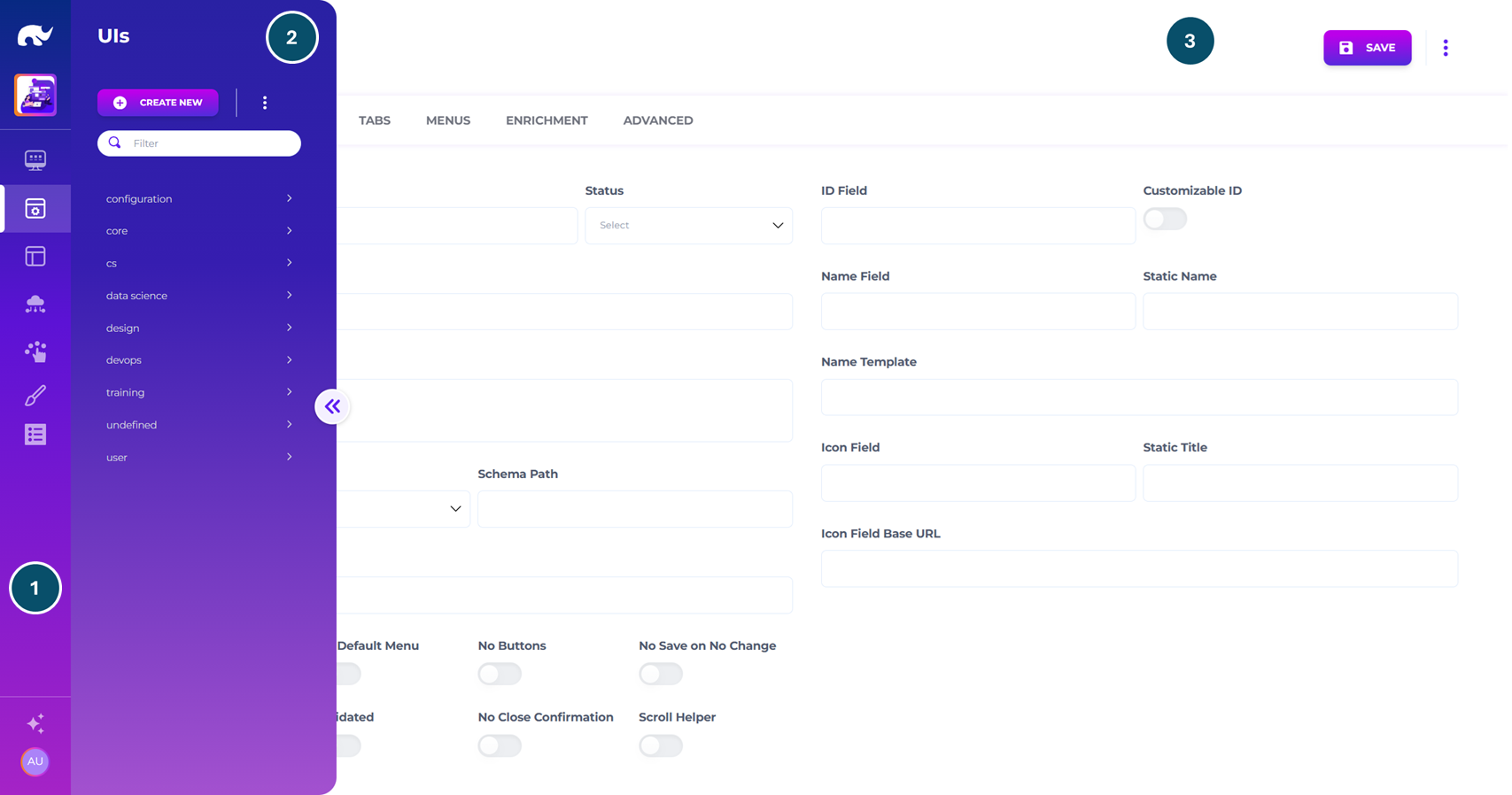
A typical screen in Rierino within an App consists of 3 main building blocks, used for navigation, listing records and editing them.
Listing Page Layout
### 1) Navigation Bar
The navigation bar is the main way to move around the Admin UI. It provides access to the global home page, apps, screens, AI agents, and the user menu.
You can hide it on specific screens using the `noNav` parameter. Most deployments keep it visible for consistent navigation.
#### Typical navigation flow
Most users follow this pattern:
1. Go to the global home page.
2. Switch to the right app.
3. Pick a screen from the screen icons.
4. Use the lister to find a record.
5. Use the editor to view or change details.
#### Global home
The top logo icon takes users back to the global home page. This logo can be customized from the icon UI.
The global home page usually lists:
* All accessible apps
* User favorites and pinned entries (if configured)
#### App switcher
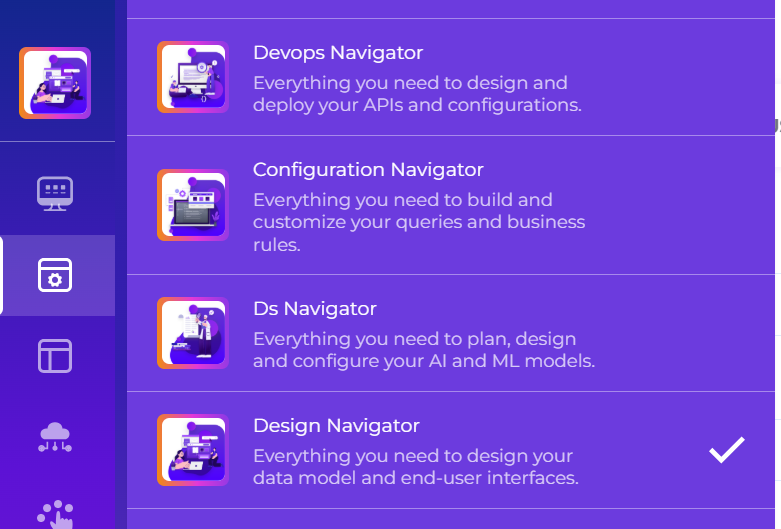
Below the logo is the app icon. It opens the app switch menu. Selecting an app routes the user to that app’s landing page.
App Switch
#### Screen shortcuts
Under the app switcher is a list of icons. Each icon represents a screen in the current app. Most screens combine a records lister and an object editor.
#### AI agents
Just above the bottom is the AI icon ✨. It lets users connect to AI agents for help and task execution.
AI Agent Listing
{% hint style="info" %}
The agent listing page is fully configurable using templates. The screenshots show the default template shipped with Rierino Core.
{% endhint %}
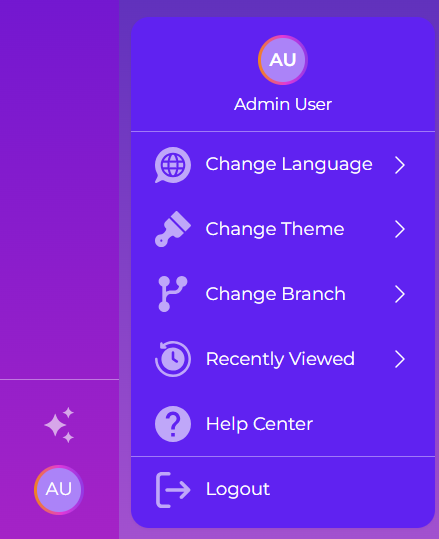
#### User menu
At the bottom is the user menu. It shows the current user. It also provides quick access to common settings:
* Changing the language of admin UI
* Changing the theme / style of admin UI
* Changing the active branch (if enabled)
* Listing and accessing recently visited screens
* Accessing help center
* Logging out of the admin UI
User Menu
### 2) Records Lister
Most screens include a list of records. These can be technical records or business records. Common examples include products, customers, and tasks to be completed.
Two common layouts are used:
* A **collapsible menu lister** for quick navigation and smaller datasets.
* A **full-page lister** (for example, a table or a map) for larger views and richer filtering.
#### What the lister is responsible for
In practice, the lister is the “finding and selecting” layer. It typically handles:
* Searching and filtering
* Sorting and paging
* Selecting one record to edit, or a set of records to act on
* Showing compact context before opening an editor
### 3) Object Editor
The object editor is used to view and edit a selected record. It is also used to create new records.
Editors can be shown:
* Inline on the page, next to the lister
* As a pop-up dialog, to keep the user focused on one task
#### What the editor is responsible for
The editor is the “detail and action” layer. It typically handles:
* Displaying the full record and related fields
* Validating user input before saving
* Triggering actions (for example, through menus and buttons)
* Supporting multi-step tasks where users need guided data entry
Object editors support the following shortcuts:
Shortcut
Action
Ctrl + S
Save current record
Ctrl + .
Creates a new record
---
# Agent Instructions
This documentation is published with GitBook. GitBook is the documentation platform designed so that both humans and AI agents can read, navigate, and reason over technical content effectively. Learn more at gitbook.com.
## Querying This Documentation
If you need additional information that is not directly available in this page, you can query the documentation dynamically by asking a question.
Perform an HTTP GET request on the current page URL with the `ask` query parameter, and the optional `goal` query parameter:
```
GET https://docs.rierino.com/quick-start/layout-and-navigation.md?ask=&goal=
```
`ask` is the immediate question: it should be specific, self-contained, and written in natural language.
`goal` is optional and describes the broader end goal you are ultimately trying to accomplish on behalf of the user. GitBook uses it to tailor the answer towards what is most useful for that goal.
The response will contain a direct answer to the question and relevant excerpts and sources from the documentation.
Use this mechanism when the answer is not explicitly present in the current page, you need clarification or additional context, or you want to retrieve related documentation sections.

.png?alt=media&token=c8204131-d0ce-46bf-b025-888081db9702)