> For the complete documentation index, see [llms.txt](https://docs.rierino.com/llms.txt). Markdown versions of documentation pages are available by appending `.md` to page URLs; this page is available as [Markdown](https://docs.rierino.com/examples/in-depth-exercise/to-do-list-query.md).
# To-do List Query
Add search to the to-do list by creating a MongoDB Query, exposing it as an API through a Saga, and wiring the UI lister to use the query endpoint with a filter.
This exercise adds a simple search flow on top of the to-do list. You will:
* define a **Query** that filters todos by `data.project`
* expose it as an API using a **Saga**
* update the UI lister to call the query endpoint and show filtered results
### Before you start
* You completed [To-do List UI](/examples/in-depth-exercise/to-do-list-ui.md).
* You can access:
* the [Query](/configuration/queries.md) screen in the Configuration app
* the [Saga](/devops/api-event-and-process-flows.md) screen in the Devops app
* the [Source](/design/api-mapping.md) and [UI](/design/user-interface/uis.md) screens in the Design app
* You know your API base URL: `https://[YOUR_ADMIN_API_DOMAIN]`.
{% hint style="info" %}
Why use a Saga?
The `todo-0001` runner is a **CRUD runner**. CRUD runners are designed for standard read/write operations.
For querying, you typically expose a dedicated RPC endpoint using a Saga (or an RPC runner).
{% endhint %}
### What you’ll build
* **Query ID**: `todo`
* Filters `data.project = %%project%%`
* **Saga path**: `/SearchTodos`
* **API endpoint**: `GET https://[YOUR_ADMIN_API_DOMAIN]/api/request/rpc/SearchTodos?project=Personal`
* **Source update**: add `query -> request/rpc/SearchTodos`
* **UI update**: switch lister to **Query Table** and add a `project` filter
{% stepper %}
{% step %}
### Open the Query screen
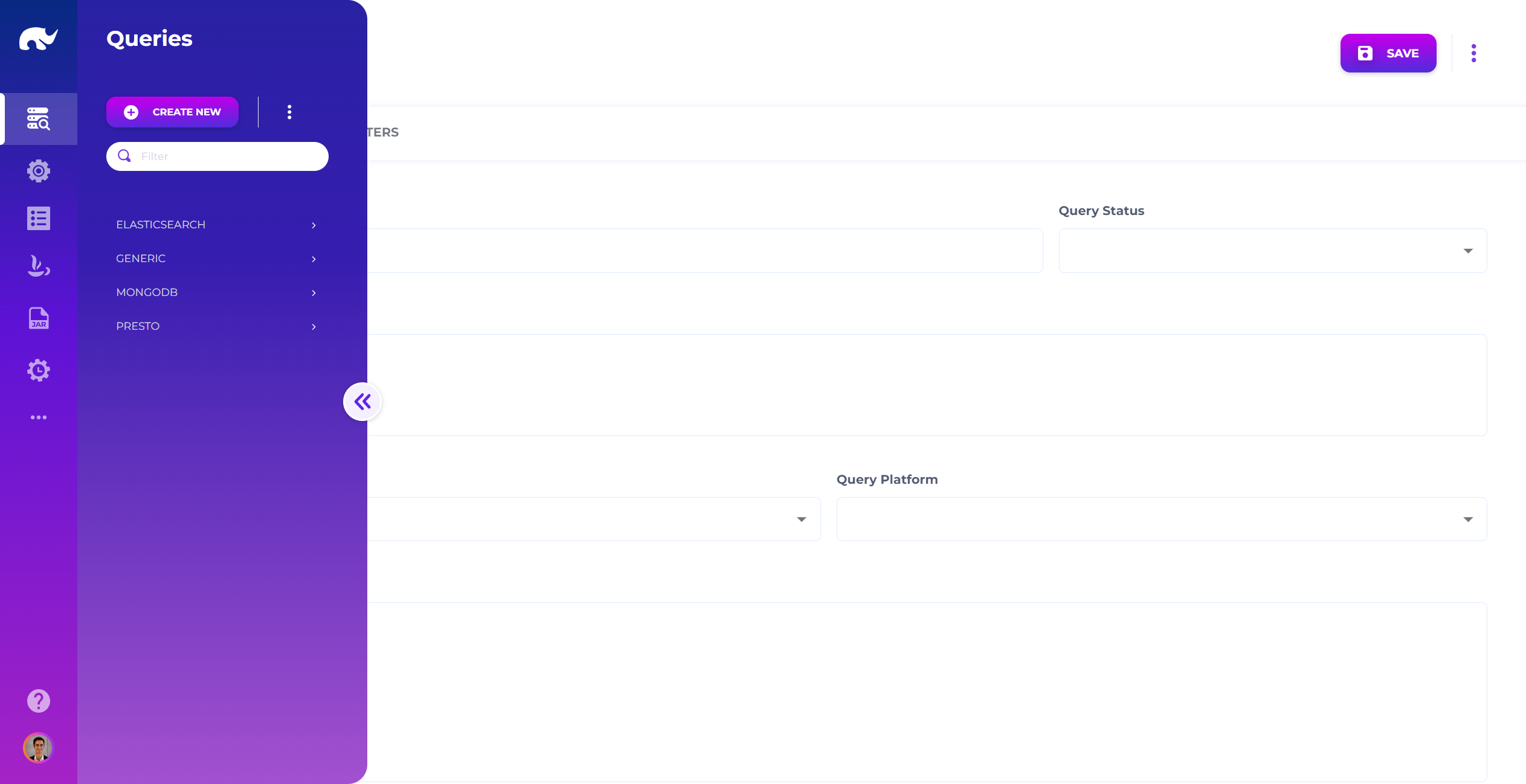
Open the [Query](/configuration/queries.md) screen from the [Configuration](/configuration/configuration-overview.md) app.
Unless you changed routing, the UI is at `https://[YOUR_ADMIN_UI_DOMAIN]/app/configuration/common/query`.
Query Screen
{% endstep %}
{% step %}
### Create the Query (todo)
Click **CREATE NEW** and set the Query ID:
* `todo`
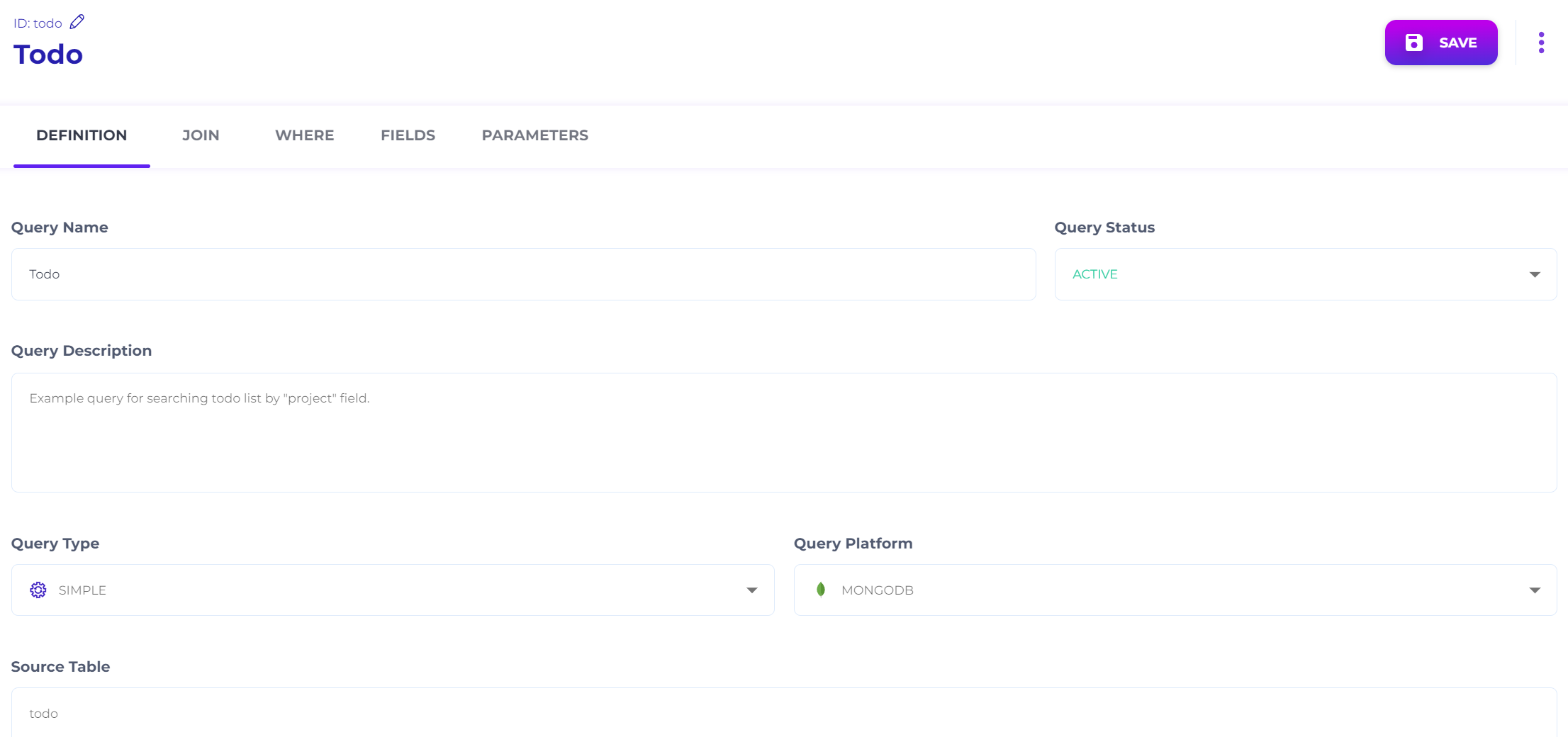
Fill in the **DEFINITION** tab:
Query Definition Screen
* **Query Name:** `Todo`
* **Query Status:** `ACTIVE`
* **Query Description (optional):** `Search todo list by project.`
* **Query Type:** `SIMPLE`
* **Query Platform:** `MONGODB`
* **Source Table:** `todo`
{% endstep %}
{% step %}
### Add a WHERE condition (project)
Open the **WHERE** tab.
Hover on the plus icon and select **Simple**.
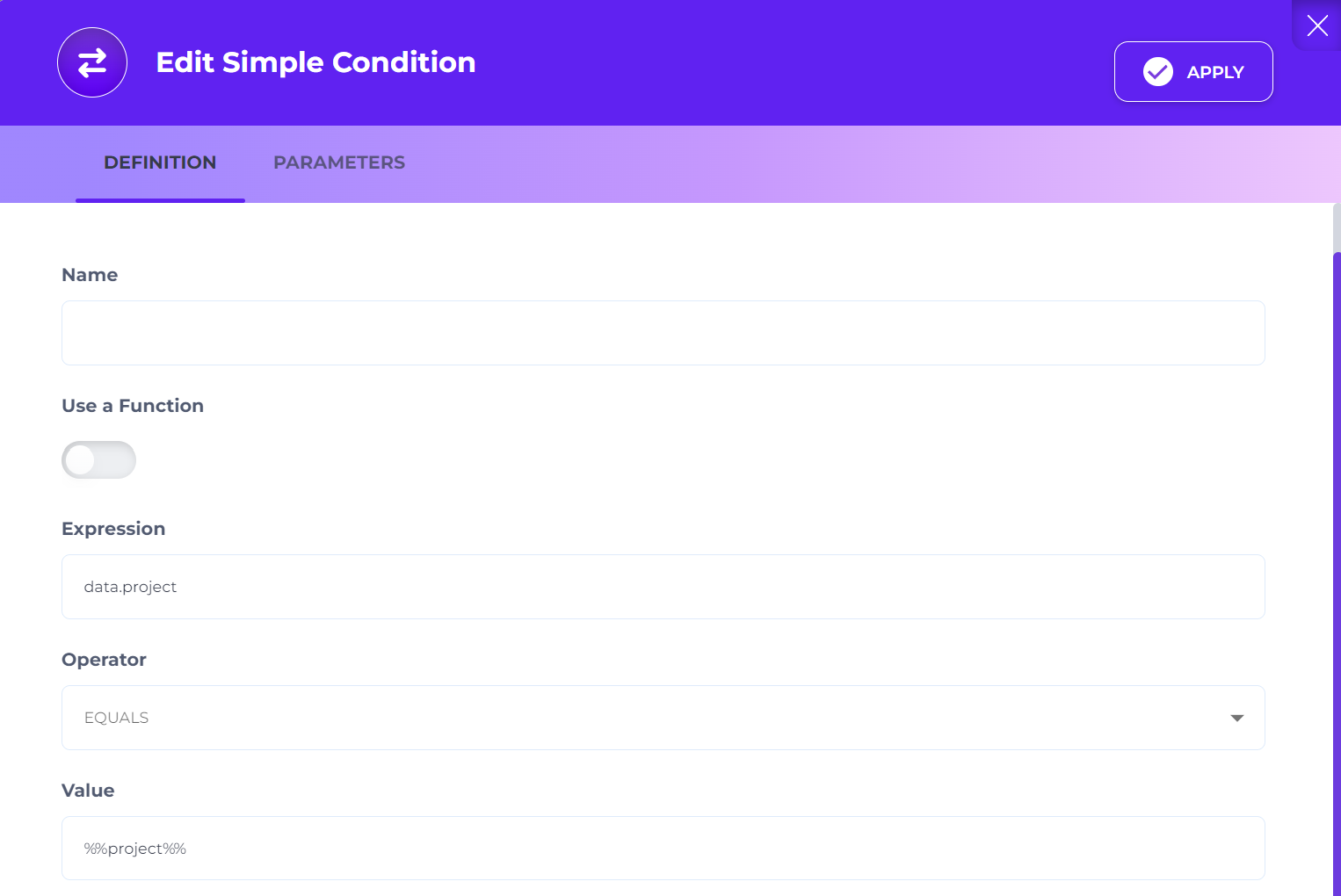
Edit the new condition:
Query Condition Dialog
* **Use a Function:** `false`
* **Expression:** `data.project`
* **Operator:** `EQUALS`
* **Value:** `%%project%%`
Save the query.
{% hint style="info" %}
`%%project%%` is a parameter placeholder. You’ll pass it at runtime through the API call.
{% endhint %}
{% endstep %}
{% step %}
### Open the Saga screen
Open the [Saga](/devops/api-event-and-process-flows.md) screen from the [Devops](/devops/devops-overview.md) app.
If you need a refresher on the basics, follow the structure in [Exercise: Hello World API](/examples/training-examples/exercise-create-an-api-endpoint.md).
{% endstep %}
{% step %}
### Create a Saga (SearchTodos)
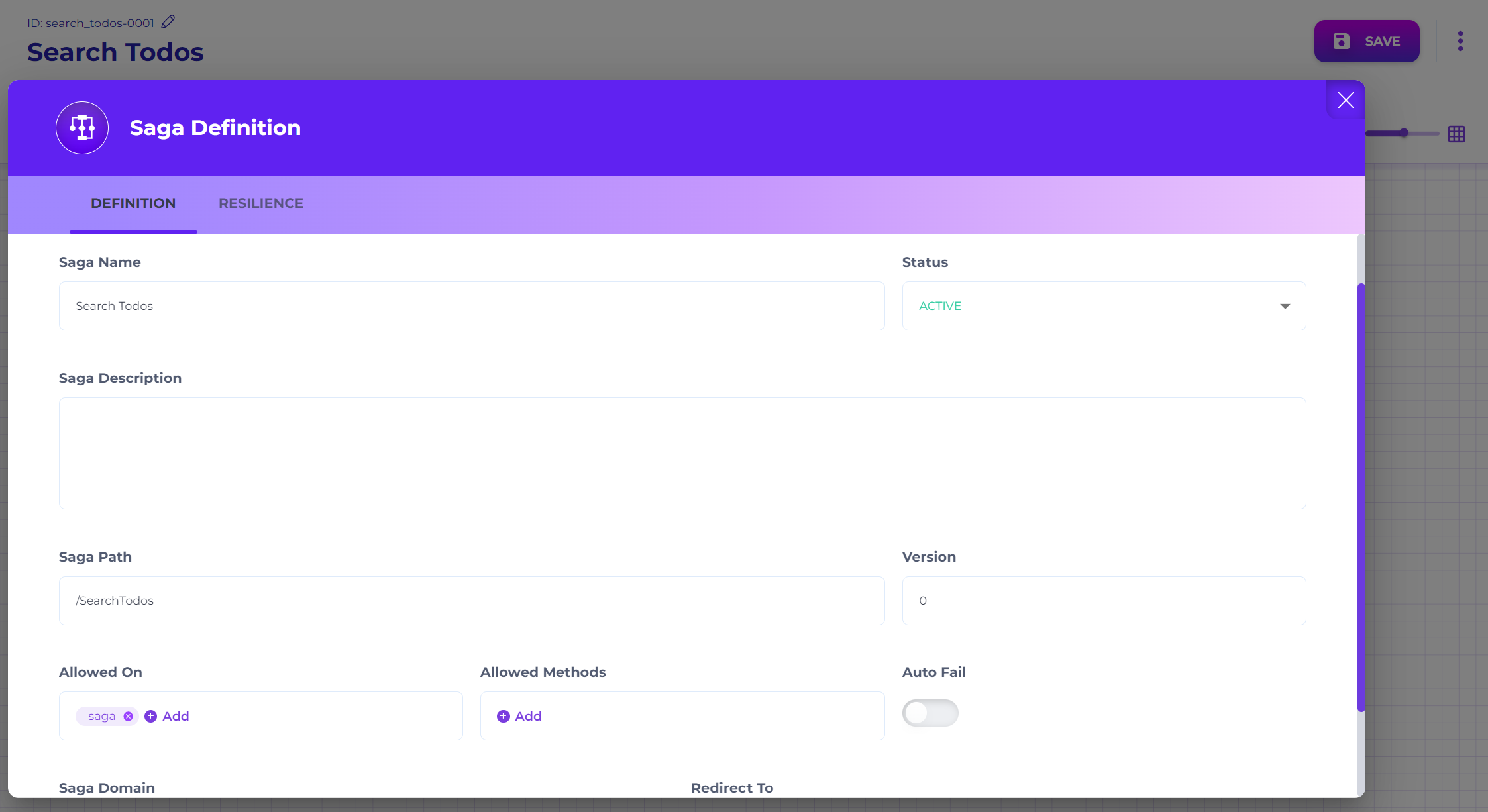
Create a new saga and set:
Search Todos Saga Definition Screen
* **Saga Name:** `Search Todos`
* **Status:** `ACTIVE`
* **Saga Path:** `/SearchTodos`
* **Version:** `0`
* **Allowed On:** `saga`
* **Saga Domain:** `util`
{% endstep %}
{% step %}
### Add steps (Start → Event → Success)
Add **Start**, **Event**, and **Success** steps from the stencil.
Link them to form:
* `Start` → `Event` → `Success`
{% endstep %}
{% step %}
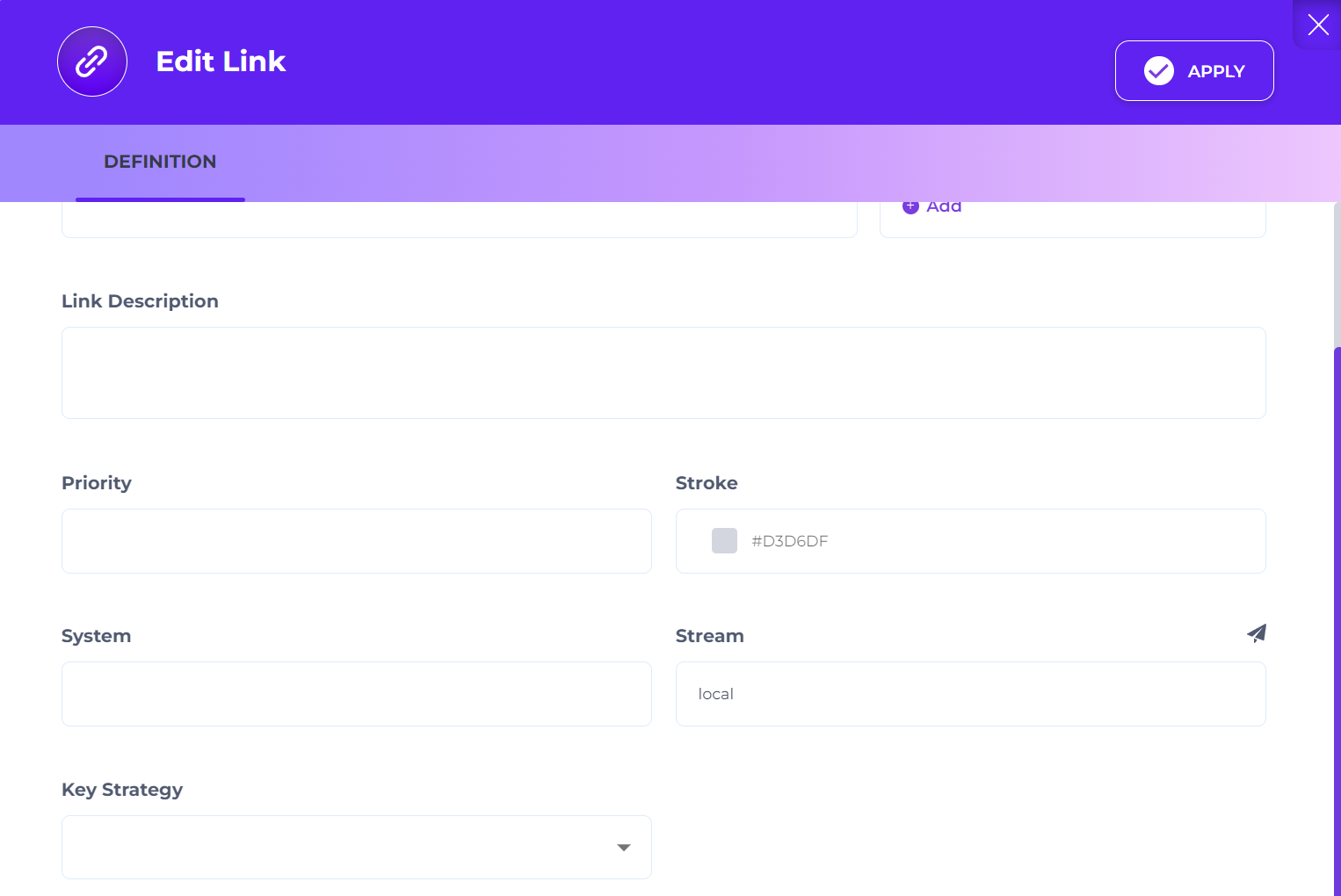
### Configure the Start → Event link (local execution)
Edit the link from **Start** to **Event**:
Saga Link Definition Dialog
* **Stream:** `local`
`local` means the gateway executes the step without delegating to a remote runner.
{% endstep %}
{% step %}
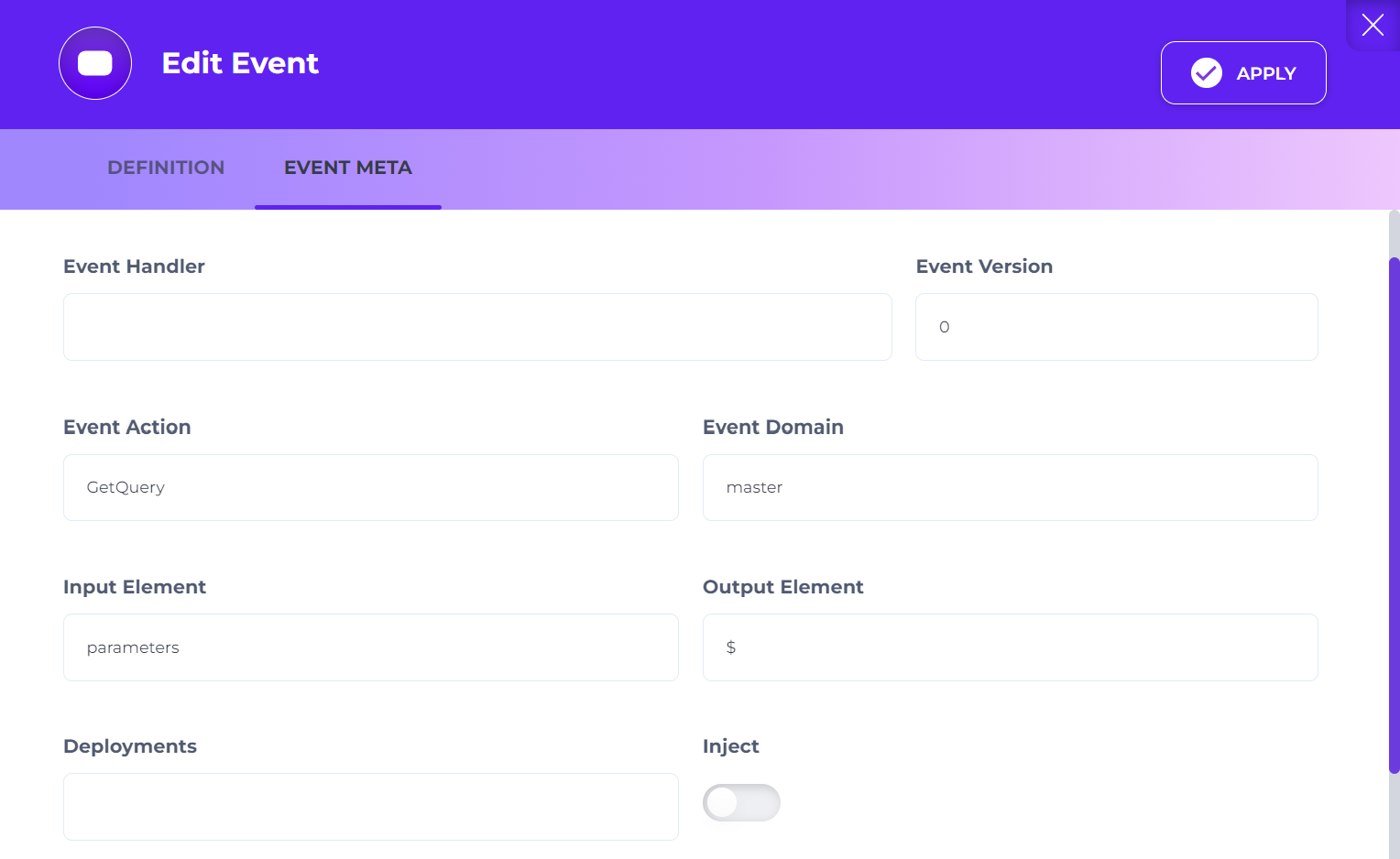
### Configure the Event step (GetQuery)
Edit the **Event** step:
Saga Event Definition Dialog
* **DEFINITION**
* **Step Name:** `Get Project Todos`
* **EVENT META**
* **Event Version:** `0`
* **Event Action:** `GetQuery`
* **Event Domain:** `master`
* **Input Element:** `parameters`
* **Output Element:** `$`
* **Parameters Map**
* **Key:** `queryId`
* **Value:** `todo`
This step executes [GetQuery](/devops/api-event-and-process-flows/configuring-saga-steps/event-step/core-actions/query-data.md) against the `master` system, using the Query ID `todo`.
It reads query parameters from `parameters` (so `project=...` becomes available as `%%project%%`).
{% endstep %}
{% step %}
### Save the Saga
Click **SAVE** to activate the saga. Wait for the gateway/runner reload interval if your environment uses one.
{% endstep %}
{% step %}
### Test the API endpoint
Call:
```
GET https://[YOUR_ADMIN_API_DOMAIN]/api/request/rpc/SearchTodos?project=Personal
```
Expected result:
* HTTP `200`
* A list of todos where `data.project` equals `Personal`
{% endstep %}
{% step %}
### Update the Source (add the query URL)
Open the `todo` Source in the Design app (`.../app/design/common/source?id=todo`).
Add a new URL row:
* **Action:** `query`
* **URL:** `request/rpc/SearchTodos`
Save the Source.
{% endstep %}
{% step %}
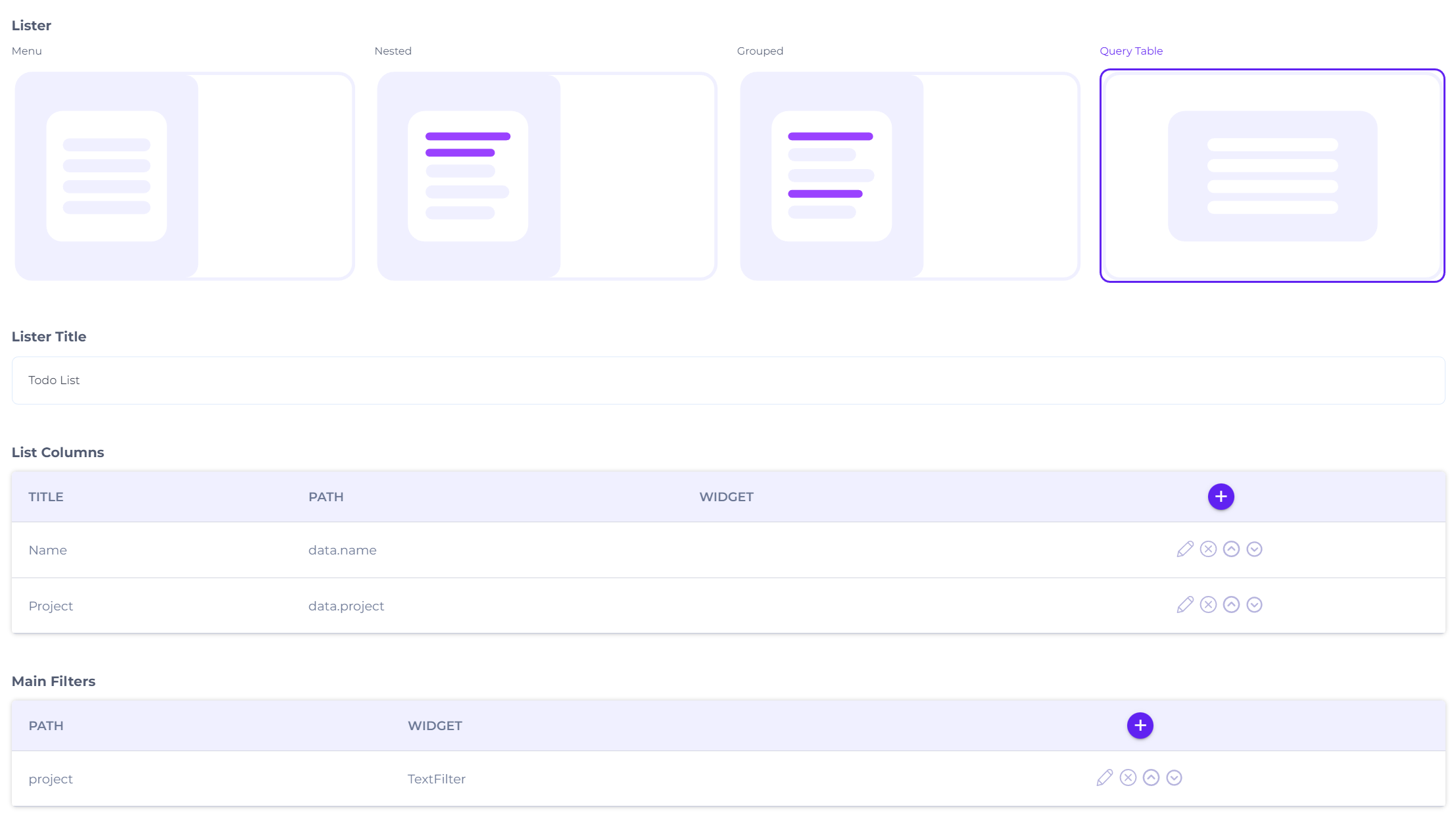
### Update the UI lister (use Query Table + filter)
Open the `todo` UI in the Design app (`.../app/design/common/ui?id=todo`).
Update the **LISTER** tab:
UI Lister Screen
* **Lister:** `Query Table`
* **List Columns**
* **Title:** `Name`, **Path:** `data.name`
* **Title:** `Project`, **Path:** `data.project`
* **Main Filters**
* **Path:** `project`, **Widget:** `TextFilter`, **Properties:** `{ "label": "Project" }`
Save the UI.
{% endstep %}
{% step %}
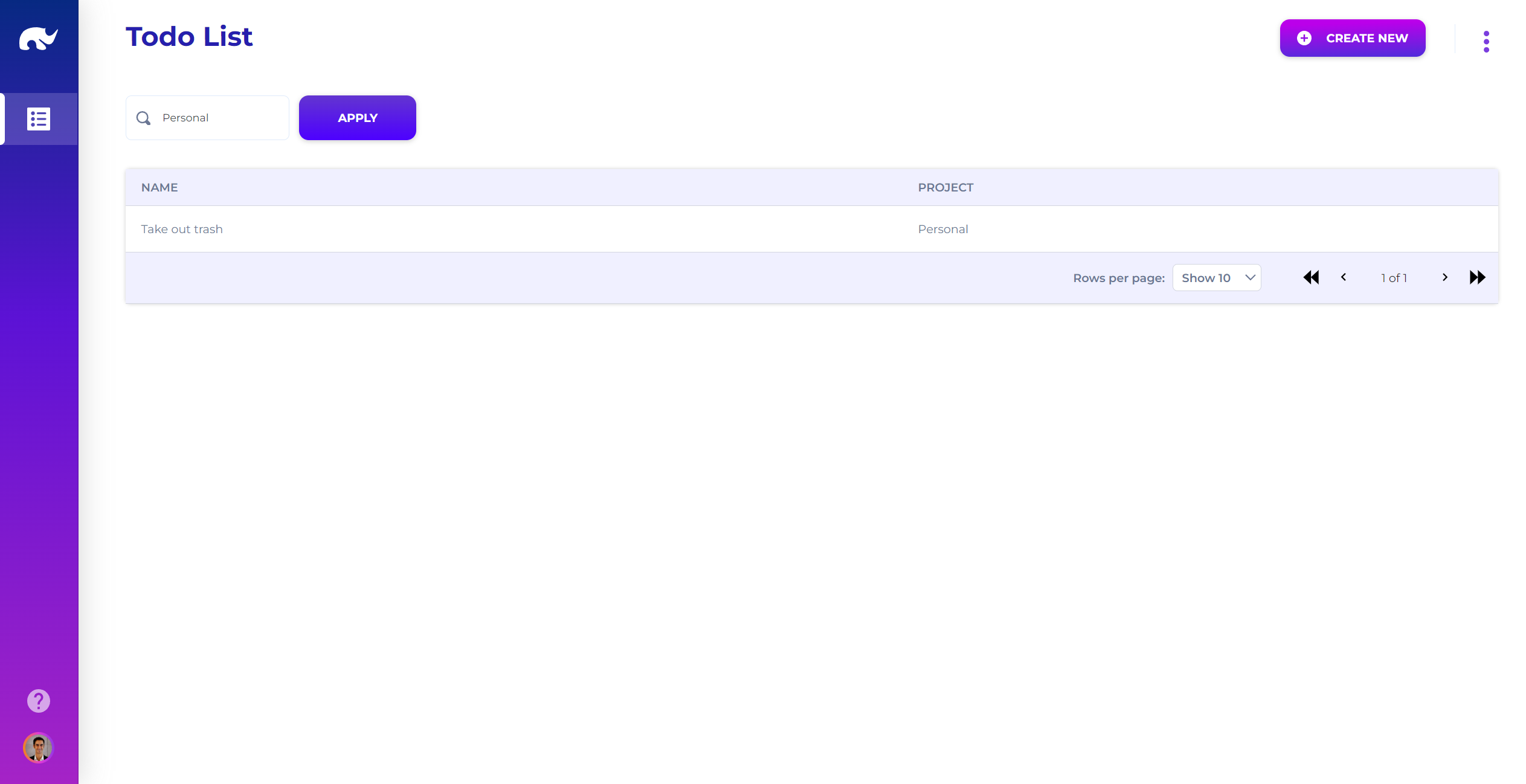
### Verify in the app
Open your Example app and go to the Todo screen.
You should now see a filter input for **Project**. Searching should call the saga endpoint and return filtered results.
Updated Todo Screen
{% endstep %}
{% endstepper %}
### Next step
You now have a complete end-to-end example: CRUD + gateway + UI + query + saga.
If you want to expand it, add:
* multiple filters (name contains, status, date range)
* pagination/sorting in the query lister
* authentication on the gateway channel
### Troubleshooting
* **Empty results**: ensure you have at least one todo with `data.project = "Personal"`.
* **Saga returns an error about `queryId`**: confirm the Query ID is exactly `todo`.
* **Parameter not applied**: confirm the saga reads from **Input Element: `parameters`** and you call `?project=...`.
* **UI still does CRUD calls**: confirm you added the Source URL for action `query` and changed the lister to **Query Table**.
---
# Agent Instructions
This documentation is published with GitBook. GitBook is the documentation platform designed so that both humans and AI agents can read, navigate, and reason over technical content effectively. Learn more at gitbook.com.
## Querying This Documentation
If you need additional information that is not directly available in this page, you can query the documentation by asking a question.
Perform an HTTP GET request on the following URL with the `ask` and `goal` query parameters:
```
GET https://docs.rierino.com/examples/in-depth-exercise/to-do-list-query.md?ask=&goal=
```
`ask` is the immediate question: it should be specific, self-contained, and written in natural language.
`goal` is what the user is ultimately trying to achieve, the reason they need the answer. Sharing it helps GitBook give you a better, more relevant answer. A goal is most helpful when it describes the outcome the user wants rather than restating the question. For example, with `ask=how do I create an API token`, a goal like `automate deployments from our CI pipeline` lets GitBook tailor the answer to that use case.
The response will contain a direct answer to the question and relevant excerpts and sources from the documentation.
Use this mechanism when the answer is not explicitly present in the current page, you need clarification or additional context, or you want to retrieve related documentation sections.