> For the complete documentation index, see [llms.txt](https://docs.rierino.com/llms.txt). Markdown versions of documentation pages are available by appending `.md` to page URLs; this page is available as [Markdown](https://docs.rierino.com/examples/in-depth-exercise/to-do-list-ui.md).
# To-do List UI
Create an Admin app, Source mapping, JSON Schema, and UI layout so users can manage to-do items from the Rierino Admin UI.
This exercise builds the Admin UI on top of your to-do API. You will create an App entry, map the UI to the gateway endpoint with a Source, define a JSON Schema, and build a basic CRUD screen.
### Before you start
* You completed [To-do List Gateway](/examples/in-depth-exercise/to-do-list-gateway.md).
* The gateway endpoint works: `GET https://[YOUR_ADMIN_API_DOMAIN]/api/request/todo_crud/todo`.
* You can access the [Design](/design/design-overview.md) app.
* You know your Admin UI base URL: `https://[YOUR_ADMIN_UI_DOMAIN]`.
### What you’ll build
* **App ID**: `example`
* Menu path: `/common/todo`
* **Source ID**: `todo`
* Default URL: `request/todo_crud/todo`
* **Schema ID**: `todo` (JSON Schema)
* **UI ID**: `todo`
* Grouped lister by `data.project`
* Editor fields: `data.name`, `data.project`
{% stepper %}
{% step %}
### Open the App screen
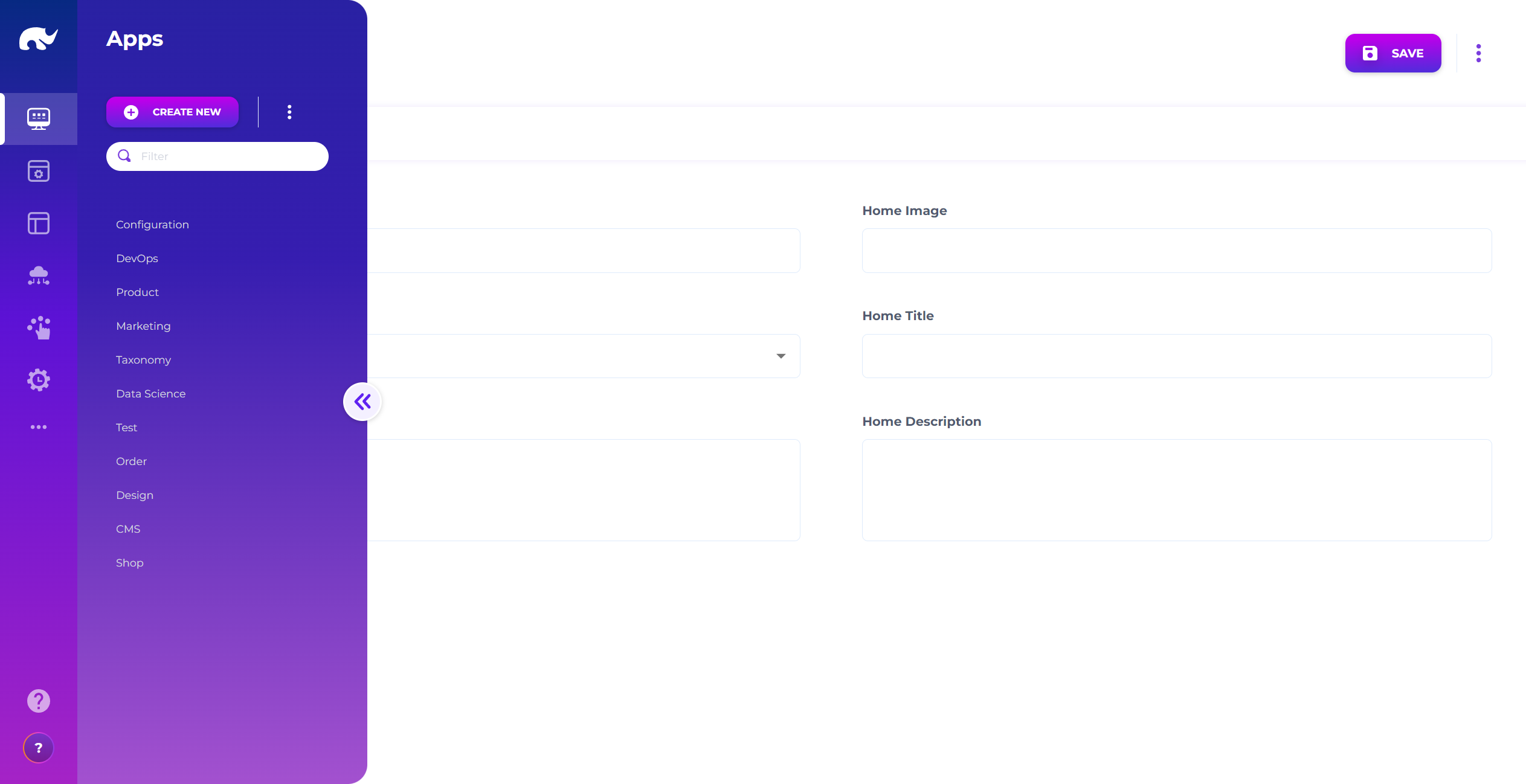
Open the [Apps](/design/user-interface/apps.md) screen from the Design app.
Unless you changed routing, the UI is at `https://[YOUR_ADMIN_UI_DOMAIN]/app/design/common/app`.
App Screen
{% endstep %}
{% step %}
### Create an App (example)
Click **CREATE NEW** and set the App ID:
* `example`
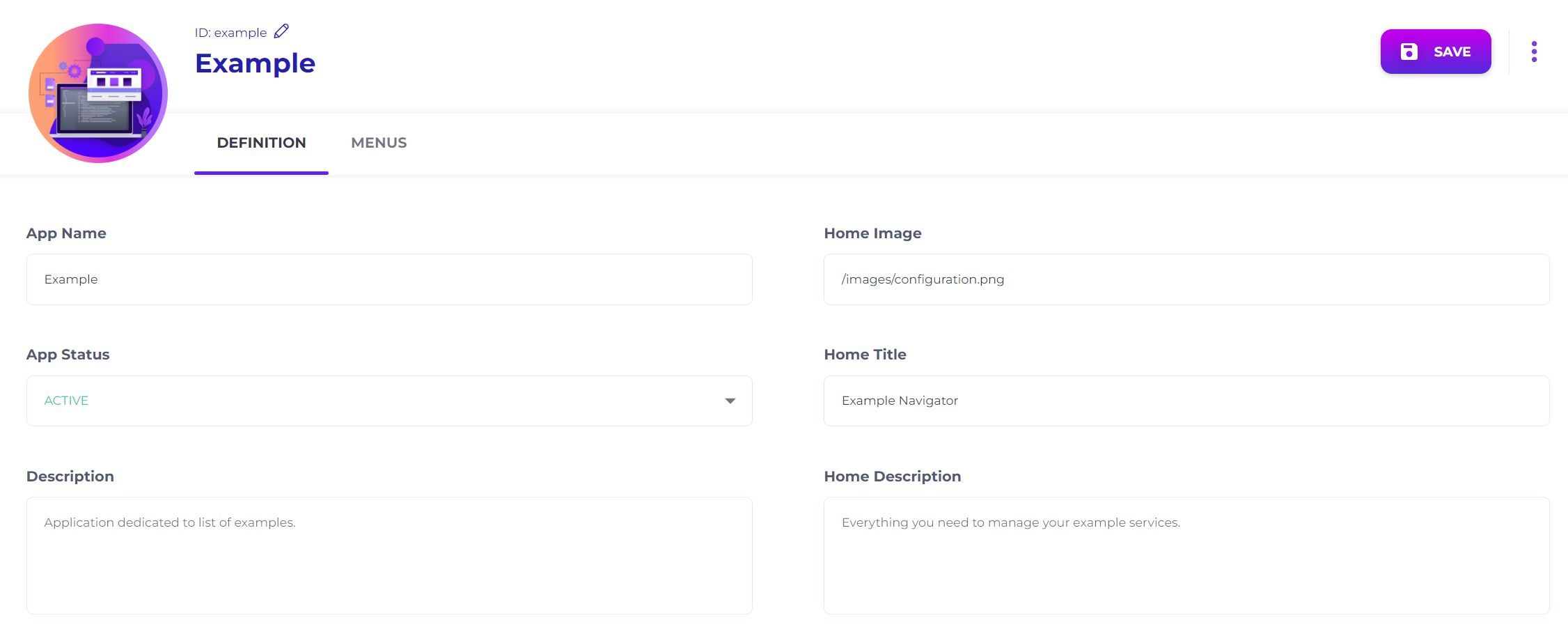
Fill in:
App Definition Screen
* **DEFINITION**
* **App Name:** `Example`
* **App Status:** `ACTIVE`
* **Description (optional):** `Application dedicated to list of examples.`
* **Home Image:** `/image/configuration.png`
* **Home Title:** `Example Navigator`
* **Home Description:** `Everything you need to manage your example services.`
* **MENUS**
* **Label:** `Todo`
* **Icon:** `rules`
* **Path:** `/common/todo`
Save the App.
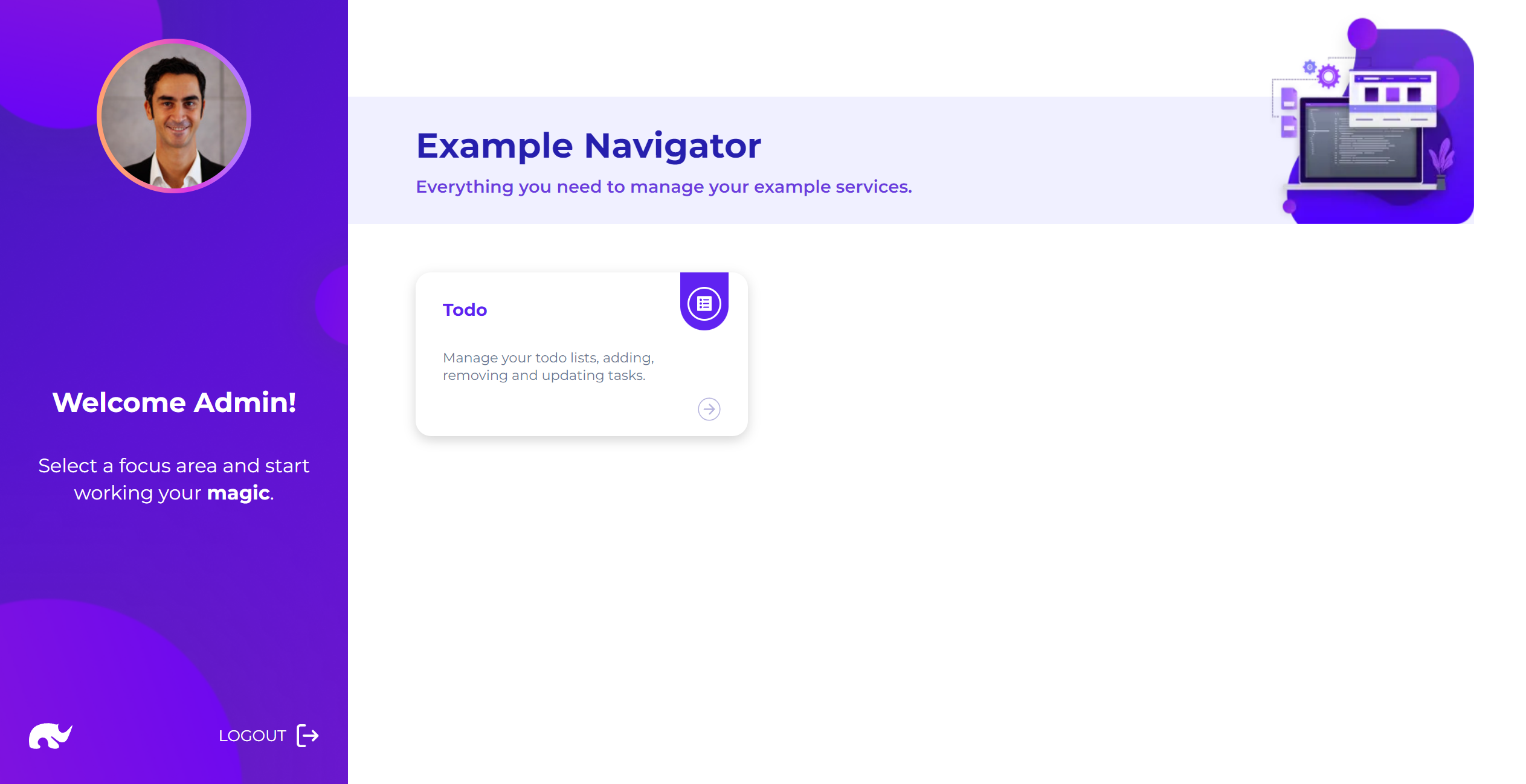
Open `https://[YOUR_ADMIN_UI_DOMAIN]/app/example` to verify:
Example App Home Page
{% endstep %}
{% step %}
### Open the Source screen
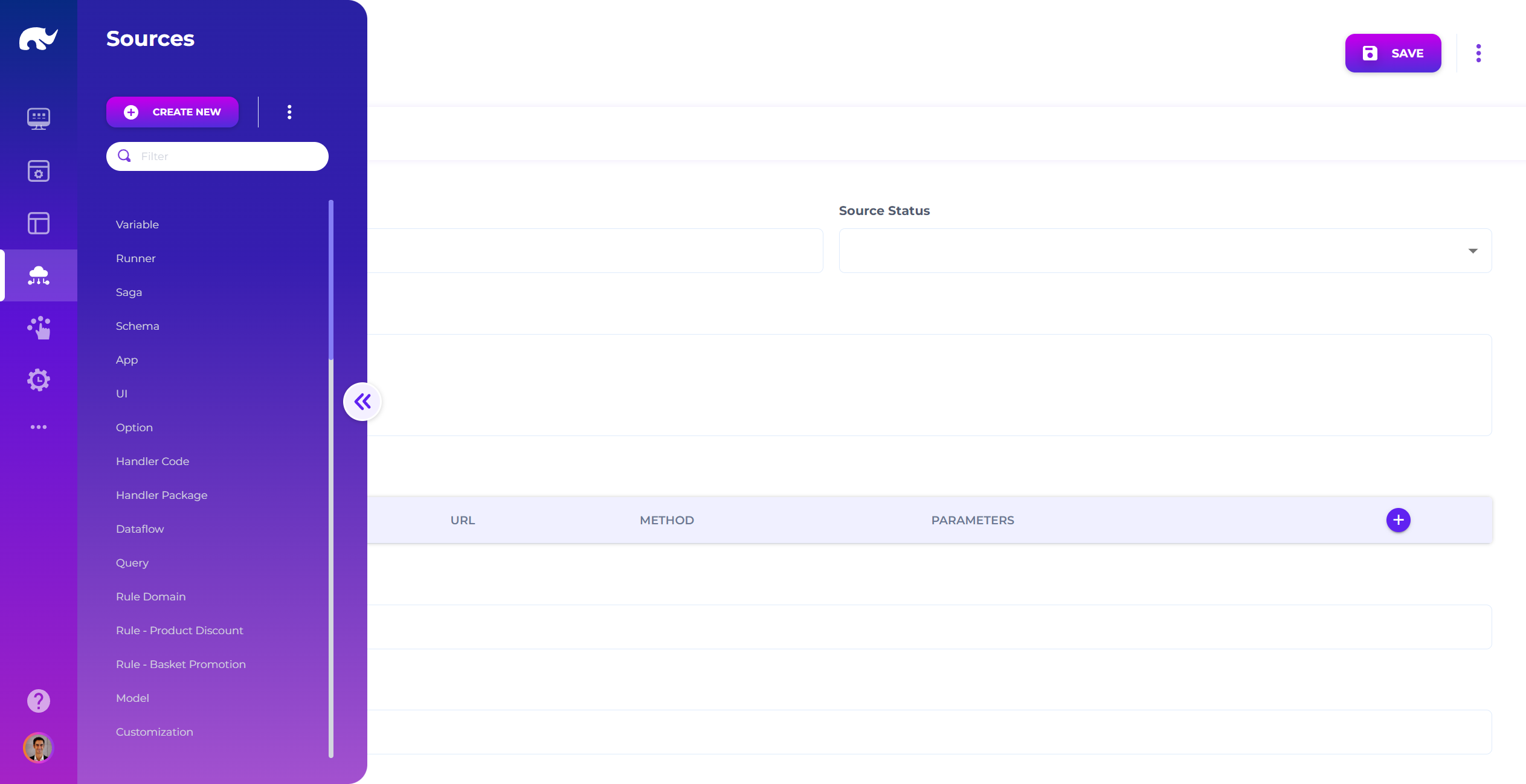
Open the [Sources](/design/api-mapping.md) screen from the Design app.
Unless you changed routing, the UI is at `https://[YOUR_ADMIN_UI_DOMAIN]/app/design/common/source`.
Source Screen
{% endstep %}
{% step %}
### Create a Source (todo)
Click **CREATE NEW** and set the Source ID:
* `todo`
Set:
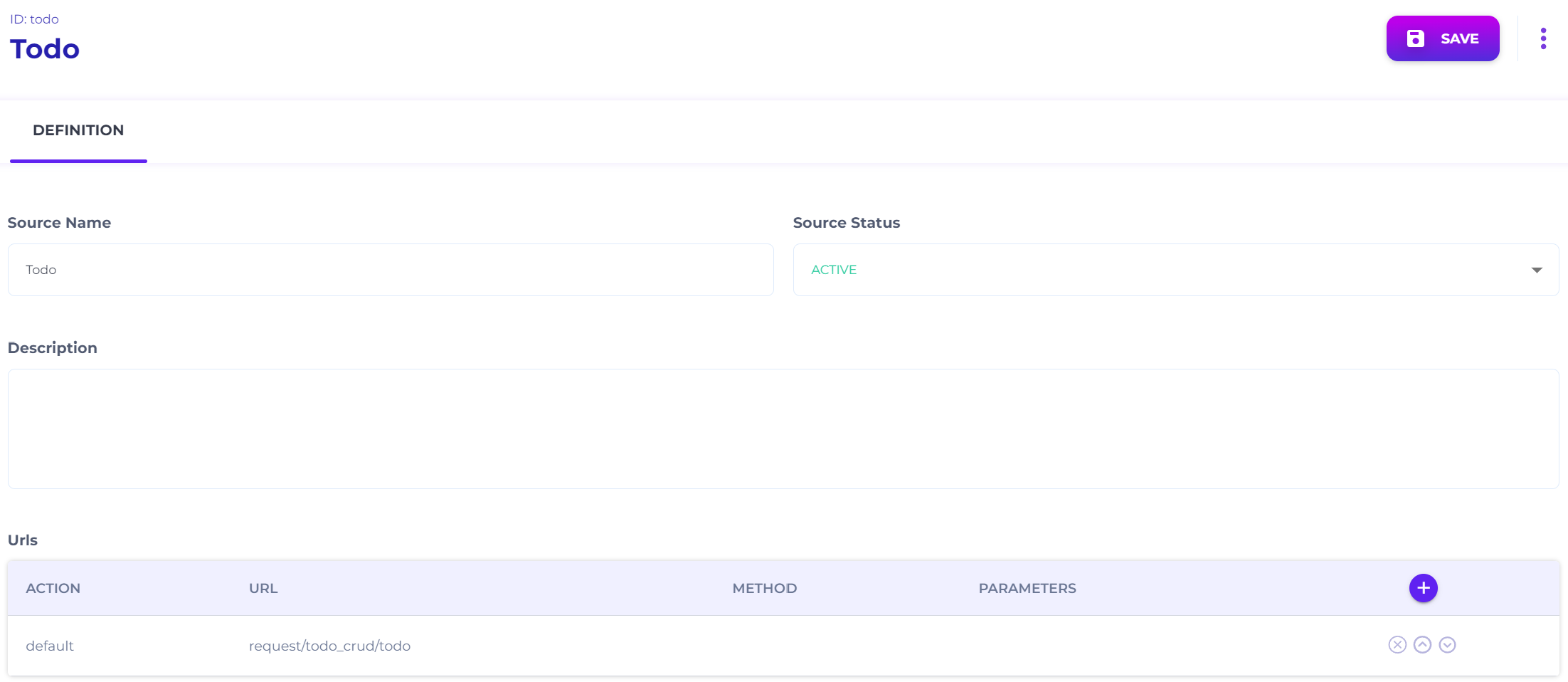
Source Definition Screen
* **Source Name:** `Todo`
* **Source Status:** `ACTIVE`
* **Urls**
* **Action:** `default`
* **URL:** `request/todo_crud/todo`
This directs UI CRUD traffic to your gateway channel endpoint:
* `/api/request/todo_crud/todo`
{% hint style="info" %}
**Why do you need a Source?**
Sources decouple UI screens from physical endpoints. You can move services later without rewriting UIs.
Sources are also a control point. Without a Source, the platform treats CRUD access as disabled for UI.
{% endhint %}
{% endstep %}
{% step %}
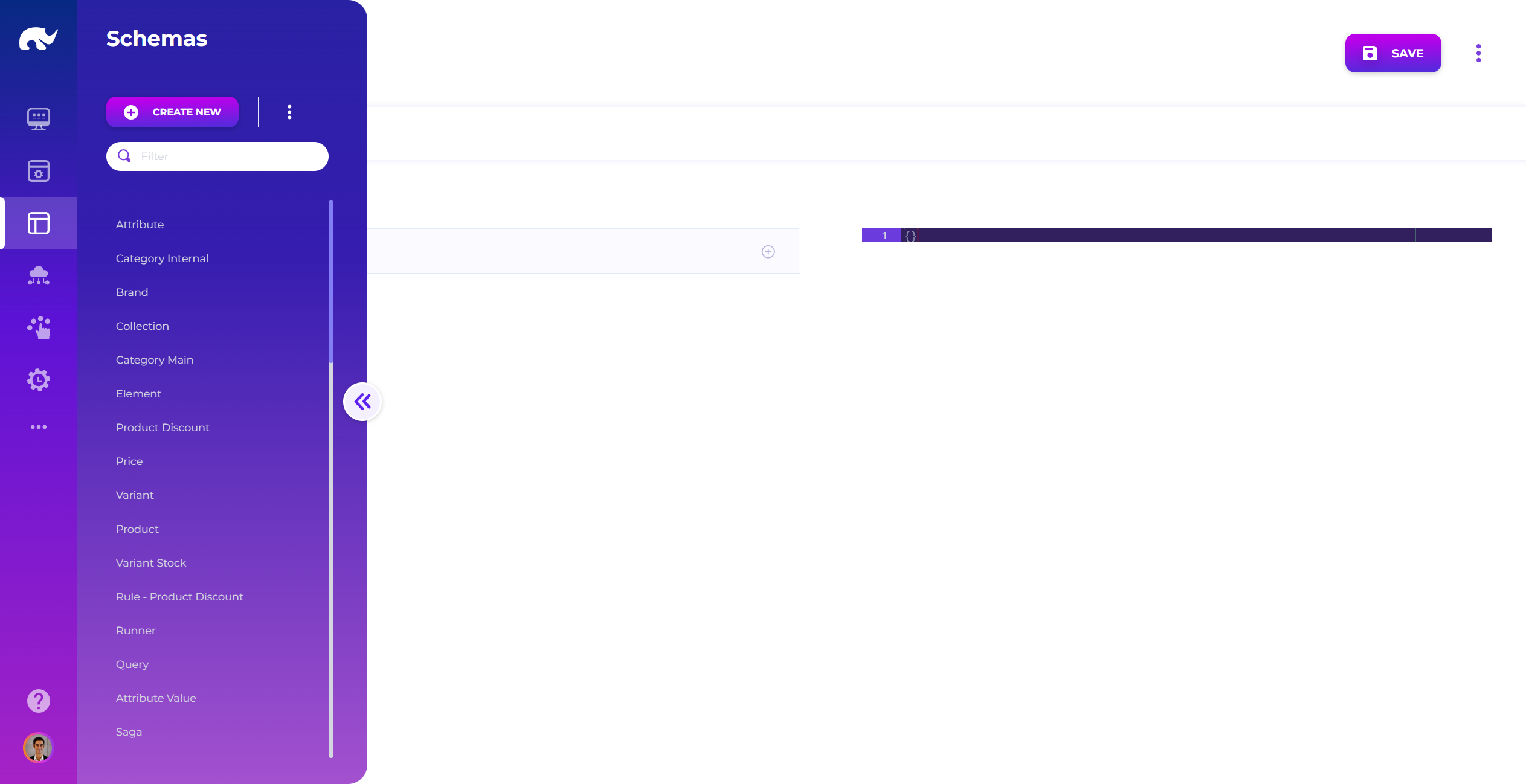
### Open the Schema screen
Open the [Data Schema](/design/data-schema.md) screen from the Design app.
Unless you changed routing, the UI is at `https://[YOUR_ADMIN_UI_DOMAIN]/app/design/common/schema`.
Schema Screen
{% endstep %}
{% step %}
### Create a Schema (todo)
Click **CREATE NEW** and set the Schema ID:
* `todo`
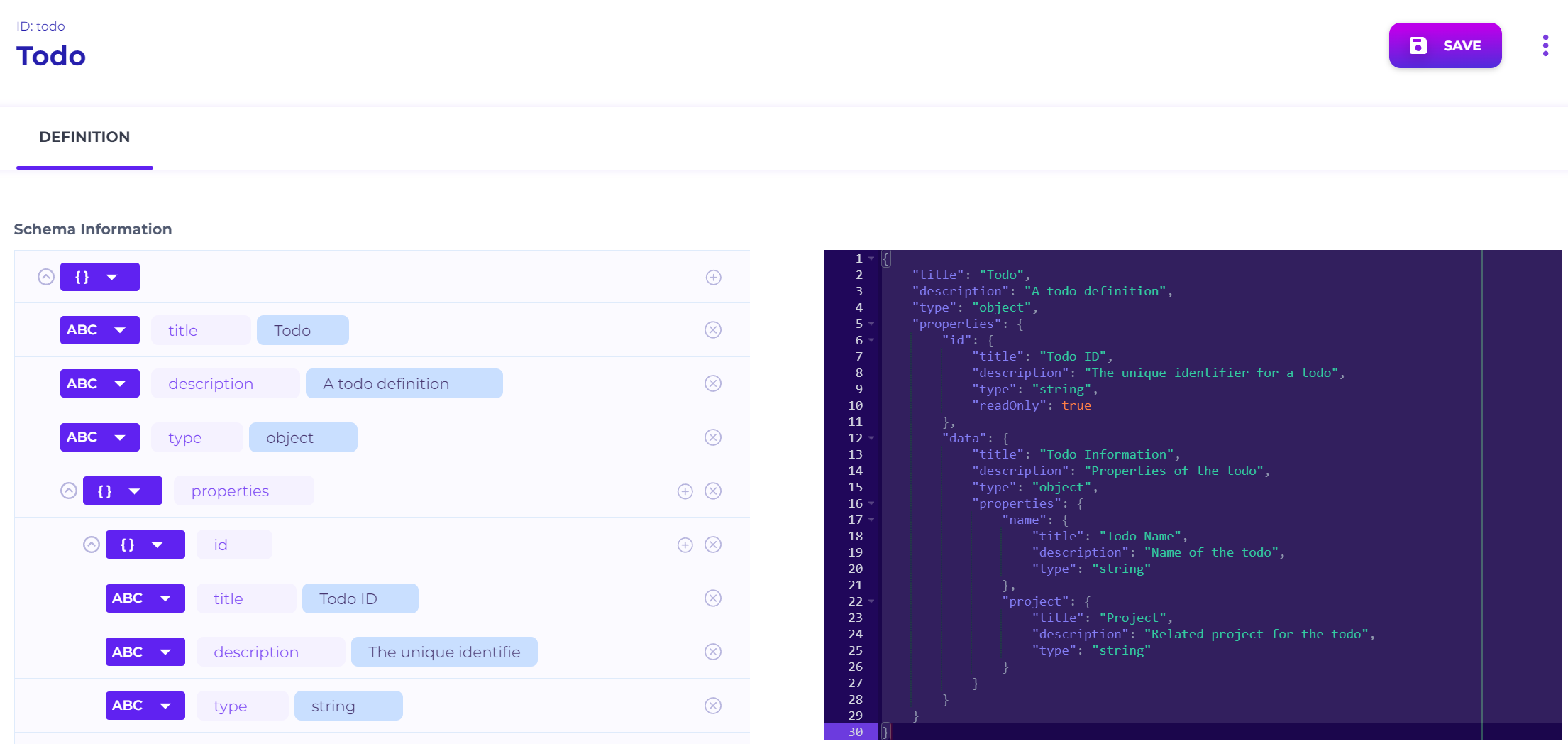
Paste this JSON Schema and save:
Schema Definition Screen
```json
{
"title": "Todo",
"description": "A todo definition",
"type": "object",
"properties": {
"id": {
"title": "Todo ID",
"description": "The unique identifier for a todo",
"type": "string",
"readOnly": true
},
"data": {
"title": "Todo Information",
"description": "Properties of the todo",
"type": "object",
"properties": {
"name": {
"title": "Todo Name",
"description": "Name of the todo",
"type": "string"
},
"project": {
"title": "Project",
"description": "Related project for the todo",
"type": "string"
}
}
}
}
}
```
Schema titles and descriptions populate UI labels. They also standardize your data model.
{% hint style="info" %}
Schema definitions follow JSON Schema. You can reuse them outside Rierino.
{% endhint %}
{% endstep %}
{% step %}
### Open the UI screen
Open the [UIs](/design/user-interface/uis.md) screen from the Design app.
Unless you changed routing, the UI is at `https://[YOUR_ADMIN_UI_DOMAIN]/app/design/common/ui`.
{% endstep %}
{% step %}
### Create a UI (todo)
Click **CREATE NEW** and set the UI ID:
* `todo`
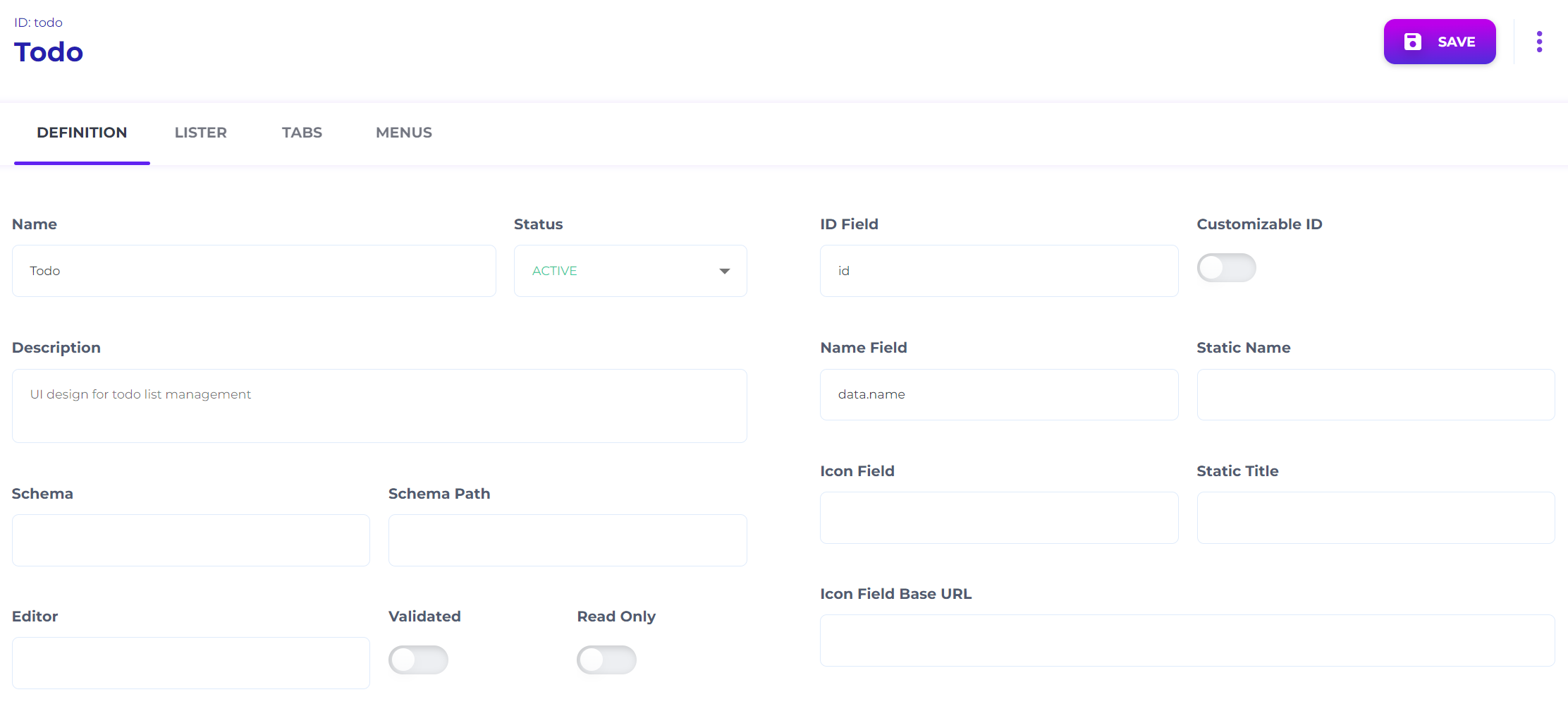
Fill in:
UI Definition Screen
* **DEFINITION**
* **Name:** `Todo`
* **Status:** `ACTIVE`
* **Description (optional):** `UI design for todo list management`
* **ID Field:** `id`
* **Name Field:** `data.name`
* **LISTER**
* **Lister:** `Grouped`
* **Lister Title:** `Todo List`
* **Group By:** `data.project`
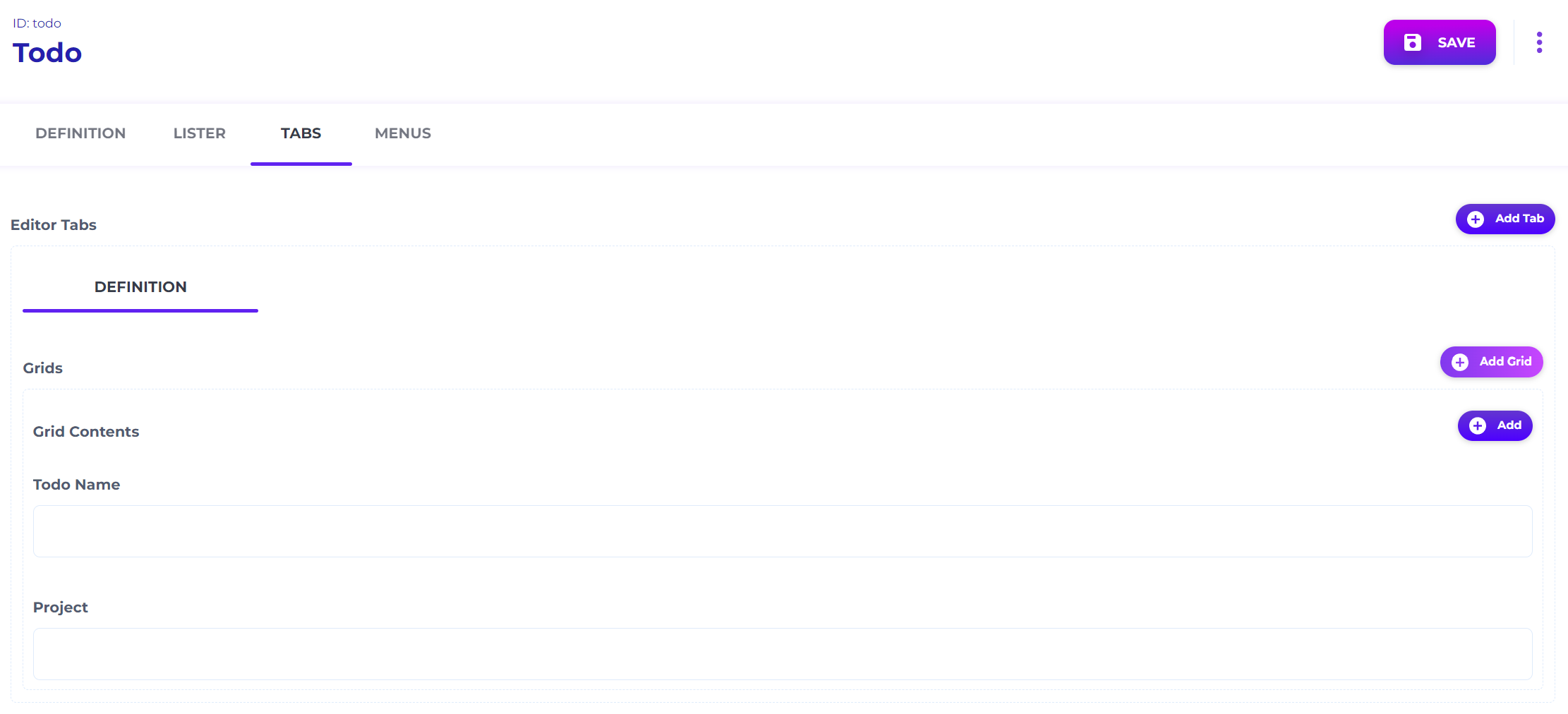
Switch to **TABS** and build the editor:
1. Click **Add Tab**.
2. Set the tab label to `DEFINITION`.
3. Click **Add Grid**.
4. Click **Add** and set **Path** to `data.name`. Select **Text**.
5. Click **Add** and set **Path** to `data.project`. Select **Text**.
You should see:
UI Tabs Screen
Save the UI.
{% hint style="info" %}
**Why is UI separate from Schema?**
One Schema can power many UIs. This helps with permissions and team-specific views.
It also supports headless usage. Your APIs can work without UI definitions.
{% endhint %}
{% endstep %}
{% step %}
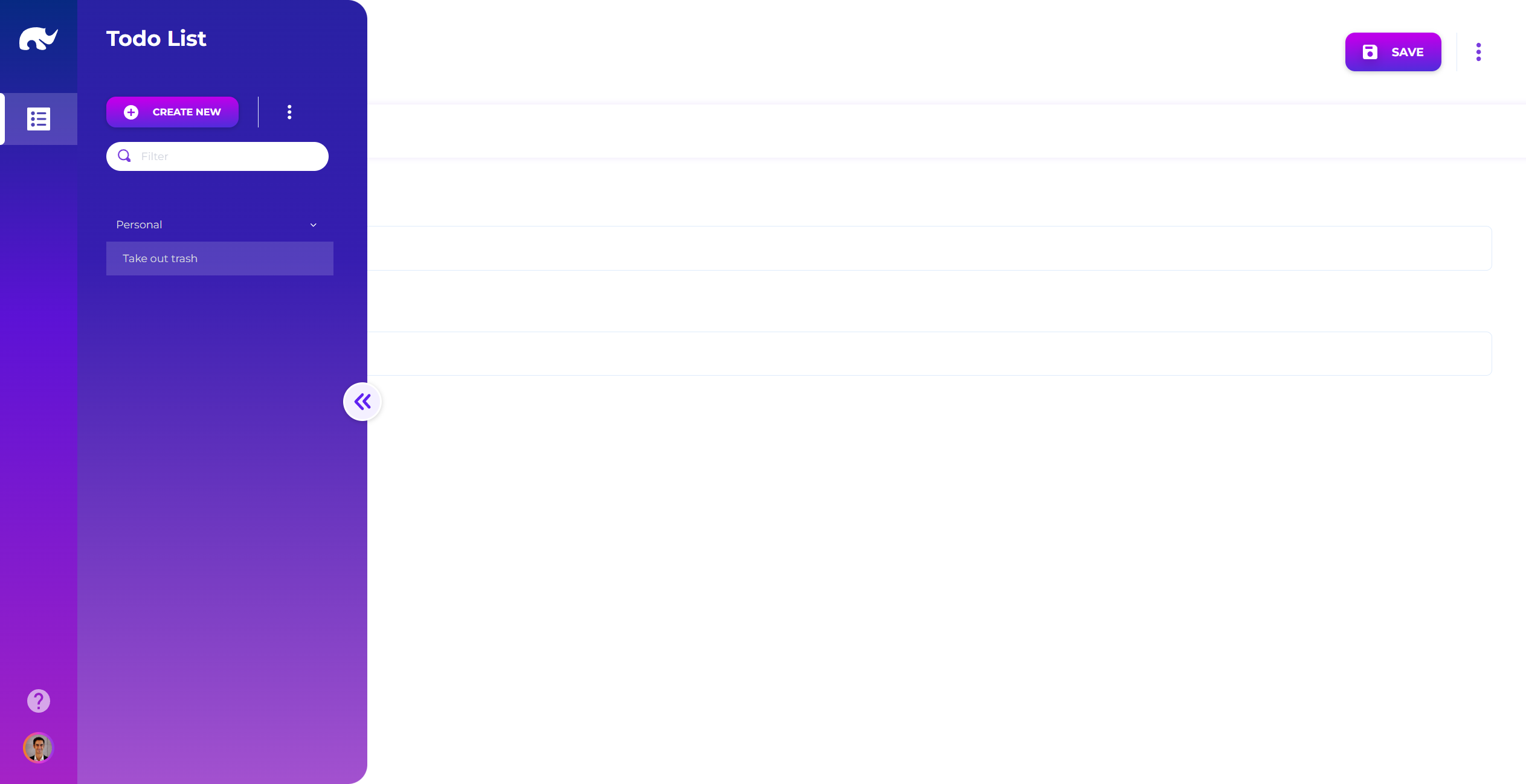
### Test the UI
Open your Example app:
* `https://[YOUR_ADMIN_UI_DOMAIN]/app/example`
Click the **Todo** menu entry.
You should be able to list, create, edit, and delete todos. Items should be grouped by `data.project`.
Todo Screen
{% endstep %}
{% endstepper %}
### Next step
Add search support with [To-do List Query](/examples/in-depth-exercise/to-do-list-query.md).
### Troubleshooting
* **Todo menu does not show up**: confirm the App is `ACTIVE` and the menu path is `/common/todo`.
* **UI opens but list is empty**: create a record via the runner/gateway first, or confirm Mongo is reachable.
* **403/401 from the UI**: your gateway channel requires auth, or your session/token is missing required claims.
* **404 from the UI**: confirm Source URL is `request/todo_crud/todo` and the gateway channel ID is `todo_crud`.
---
# Agent Instructions
This documentation is published with GitBook. GitBook is the documentation platform designed so that both humans and AI agents can read, navigate, and reason over technical content effectively. Learn more at gitbook.com.
## Querying This Documentation
If you need additional information that is not directly available in this page, you can query the documentation by asking a question.
Perform an HTTP GET request on the following URL with the `ask` and `goal` query parameters:
```
GET https://docs.rierino.com/examples/in-depth-exercise/to-do-list-ui.md?ask=&goal=
```
`ask` is the immediate question: it should be specific, self-contained, and written in natural language.
`goal` is what the user is ultimately trying to achieve, the reason they need the answer. Sharing it helps GitBook give you a better, more relevant answer. A goal is most helpful when it describes the outcome the user wants rather than restating the question. For example, with `ask=how do I create an API token`, a goal like `automate deployments from our CI pipeline` lets GitBook tailor the answer to that use case.
The response will contain a direct answer to the question and relevant excerpts and sources from the documentation.
Use this mechanism when the answer is not explicitly present in the current page, you need clarification or additional context, or you want to retrieve related documentation sections.